How to add captions to a video on iPhone
To add captions to a video on an iPhone, upload it to a caption tool in Safari, fix any misheard words, pick a style and download an MP4 with the captions burned in. Apple's Clips app used to make captions from your voice, but it is closed to new users, and iMovie, Instagram and YouTube each do only part of the job.
Published Updated
Every fact about Apple's, Instagram's and YouTube's apps below links to their own help page, read on 5 November 2026.
Which way should you caption a video on iPhone?
It depends on two things: whether the words should be written from your speech automatically, and whether they need to be part of the video itself (burned in, or open captions) or only shown by the app you post to (closed captions). Short-form creators usually want both: automatic, and burned in, so the captions look the same wherever the clip ends up.
| Route | Written from speech? | Part of the video file? | Best for |
|---|---|---|---|
| Clips Live Titles | Yes, as you record | Yes | Existing Clips users recording new clips |
| iMovie titles | No, you type them | Yes | A name, a hook or a few lines |
| Instagram closed captions | Yes | No, shown by Instagram | Accessibility on Reels |
| YouTube automatic captions | Yes | No, shown by YouTube | Accessibility on Shorts |
| CapCut auto captions | Yes | Yes | Clips you already edit in CapCut |
| AutoCaptionGenerator in Safari | Yes, word by word | Yes, or as SRT, VTT or TXT | Styled captions on a finished clip |
How do you burn styled captions into a video in Safari on iPhone?
AutoCaptionGenerator runs in Safari, so there is no app to install. It transcribes each word with its own start and end time, lets you restyle the result, and exports an MP4 with the captions burned into the picture. No plan adds a watermark. Start without an account; sign in free to download.
Choose your video in Safari
Open the uploader in Safari, tap Choose video and pick the clip. MP4 and MOV both work, so a video straight from the Camera app is fine. The free plan takes videos up to 10 minutes and 500 MB. When the speech is transcribed, the editor opens with your video on top and the controls below it.
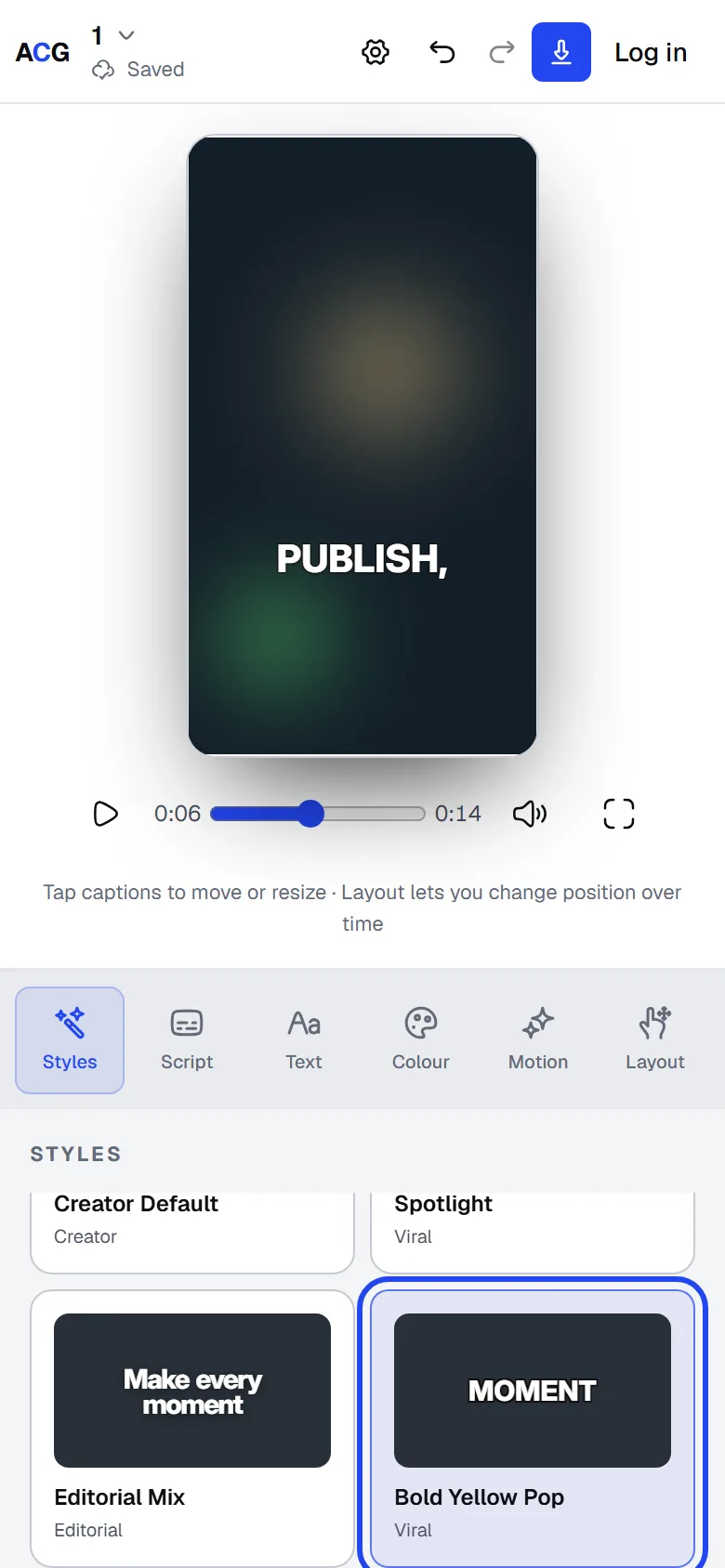
The editor on a phone after upload: the video, its captions and the settings tabs underneath. Correct any word it misheard
Tap Script to see the transcript line by line, then tap a word and retype it. The word keeps its timing, so fixing a name does not shift the captions around it.
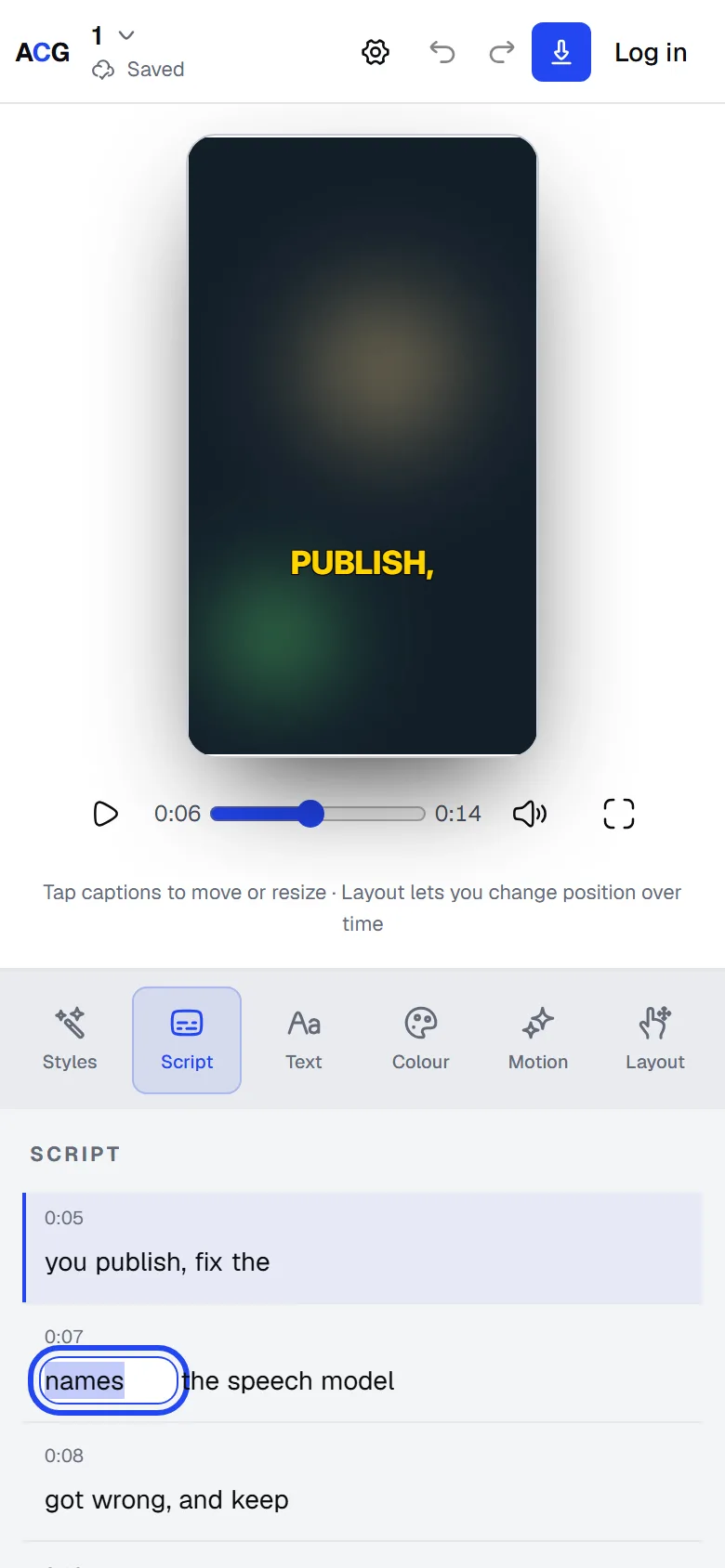
Each word in the transcript is its own control: tap one to correct it. Pick a caption style
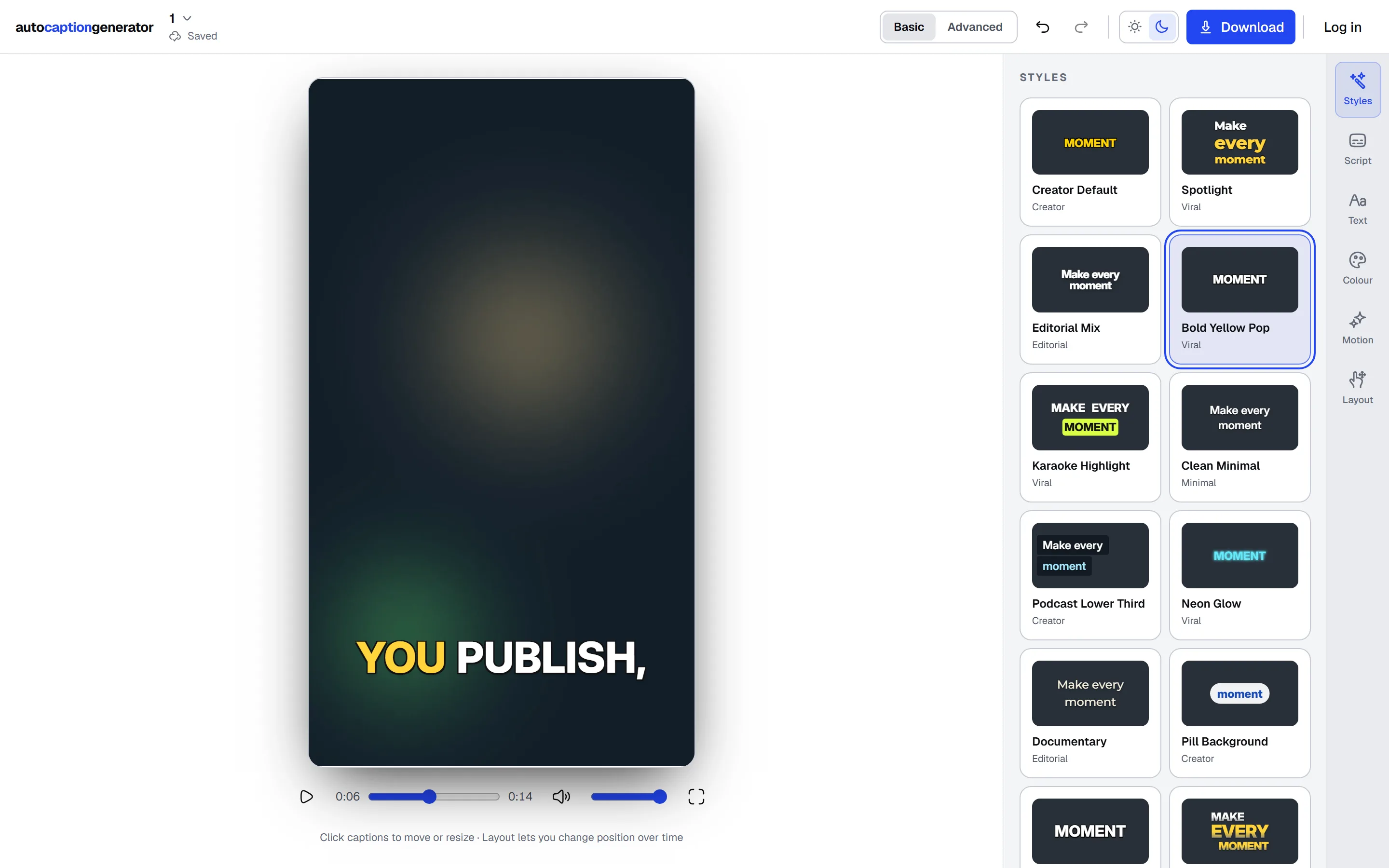
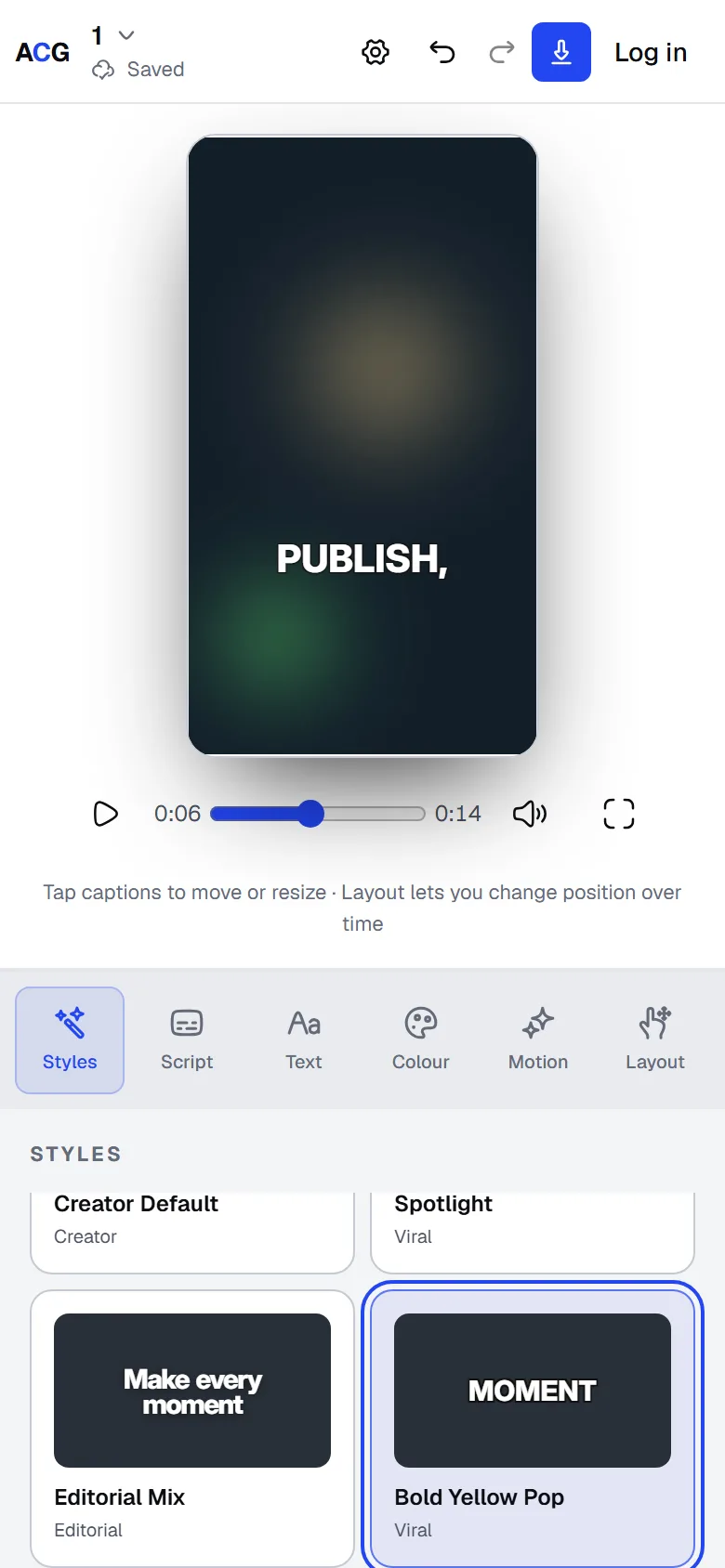
Tap Styles and try one; it plays on your own clip straight away. Every style previews free. The word-highlight styles, Karaoke Highlight, Marker Underline and Big Word Focus, export on Starter; the free plan exports a smaller set. If your choice needs Starter, the download dialog says so and offers a style your free account can export, and caption files stay available either way. The style gallery shows them all.
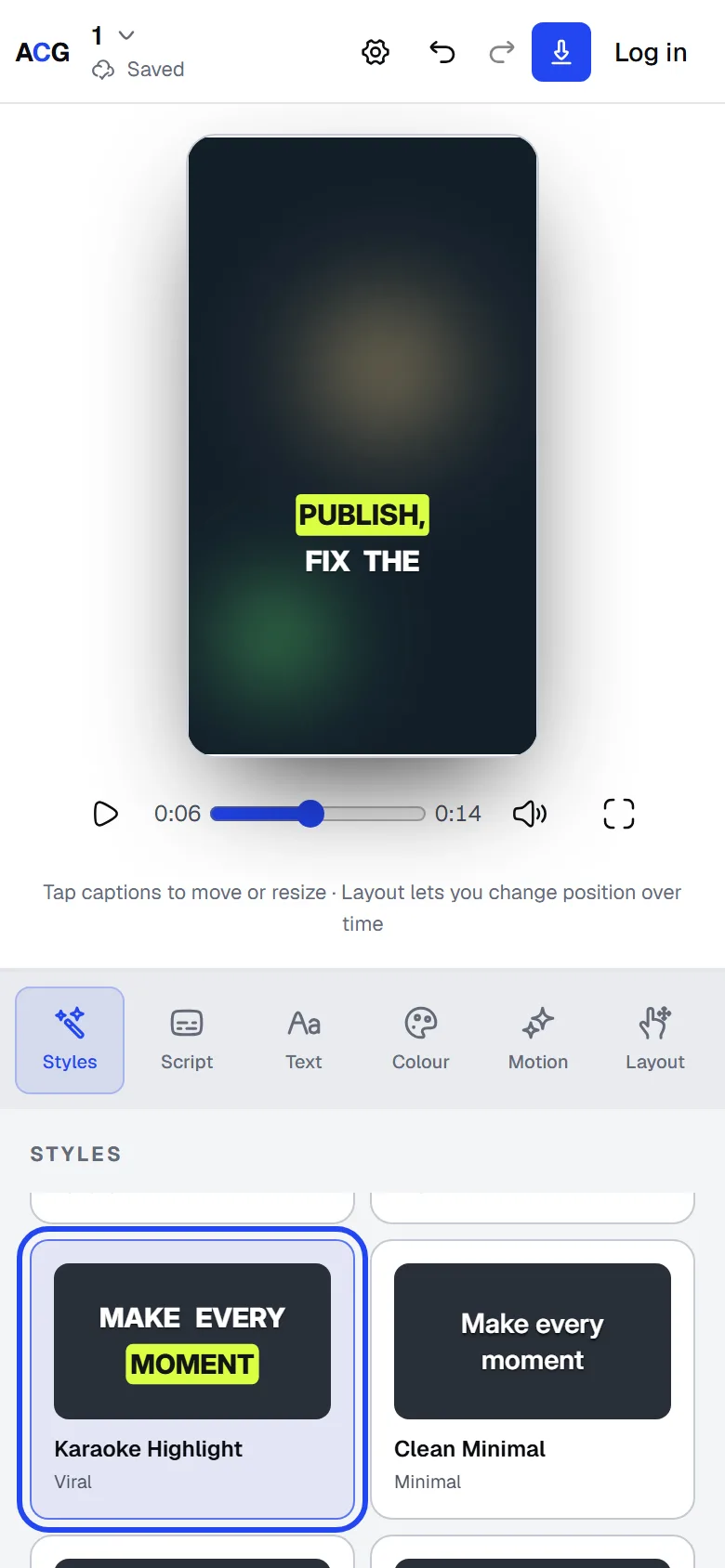
Karaoke Highlight previewing on the clip. Word-highlight styles export on Starter. Check the captions against the safe area
Tap Layout and choose TikTok, Instagram Reels or YouTube Shorts under Safe area. The shaded bands show where that app draws its own caption, buttons and progress bar, and a band turns red when the caption text overlaps it. A new vertical project starts with the captions 28% from the bottom and 62% wide, clear of all three apps. If you move them lower, make them bigger, widen them or pick a style with large type, check again before you download.
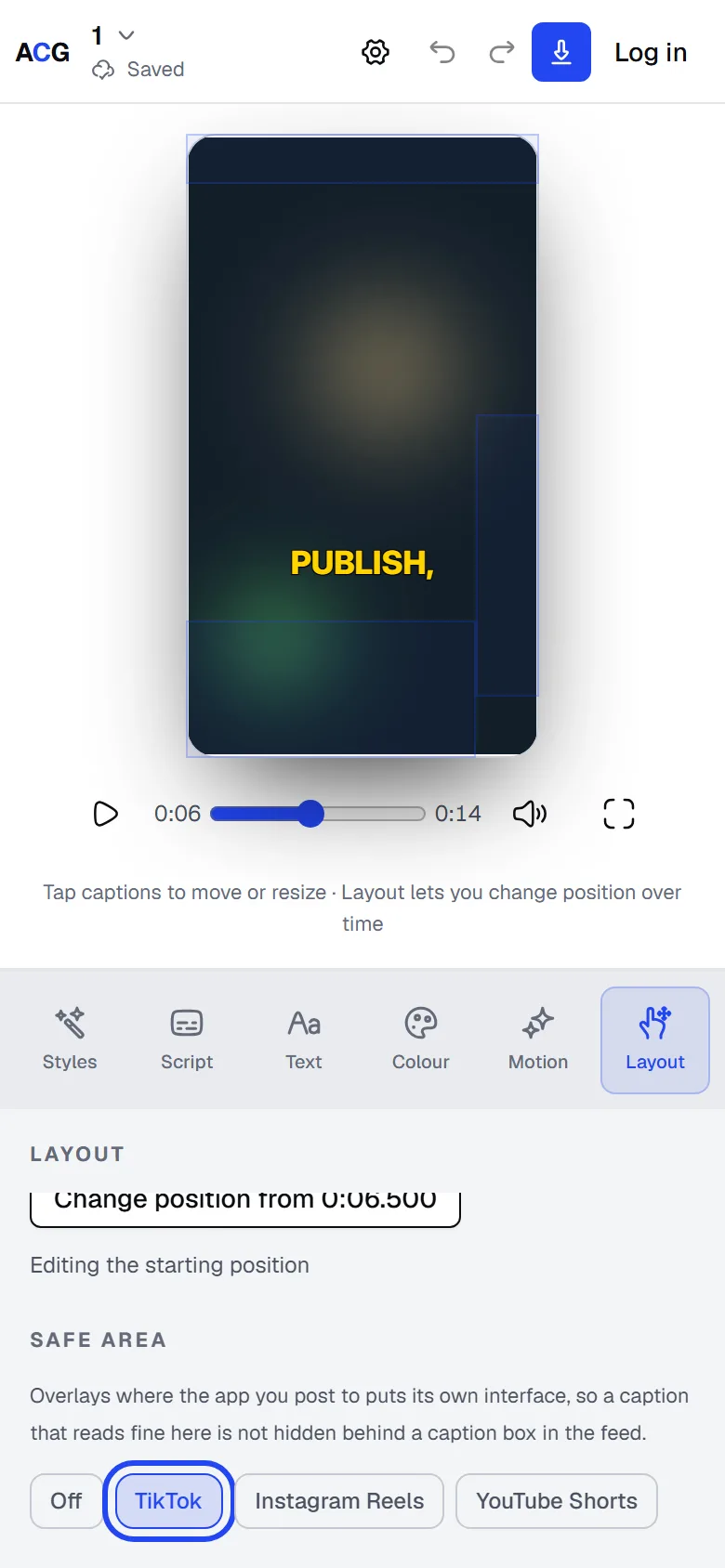
A new vertical project: the caption starts above TikTok's bottom band. Sign in free and download
Tap the download button and sign in with Google or email. Choose the captioned MP4, at up to 1080p on the free plan or 4K on Starter, or caption files only (SRT, VTT or TXT) for an app that adds its own captions.
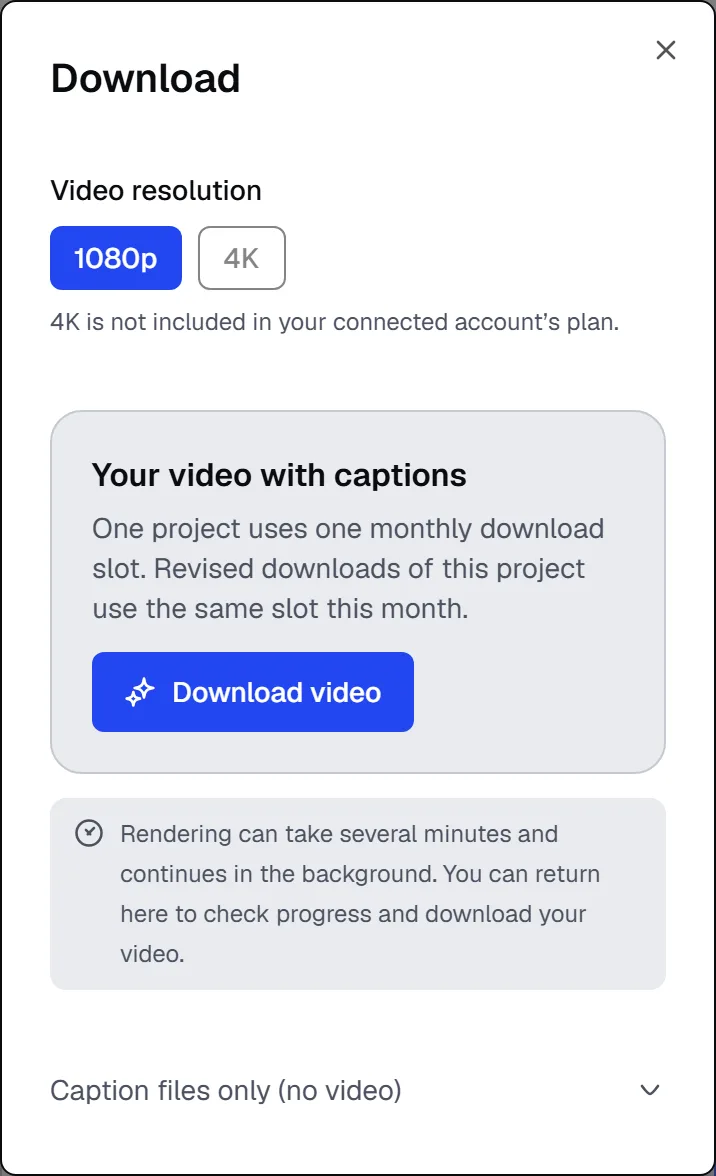
The download dialog for a signed-in free account. Rendering carries on if you leave it. Find the file and post it
Apple's page on where downloads go says files you download from the internet land in the Downloads folder of the Files app, and that right after a download in Safari a Downloads button appears next to the search field. Open the MP4 from there and share it to Photos or straight to the app you post with.
The free plan covers 3 video projects exported each month, videos up to 10 minutes and 500 MB, at up to 1080p. Guest projects last 24 hours and free accounts keep them for 7 days, so download before then. Longer videos, 4K and the premium styles are on Starter; pricing has the current figures.
Where should captions sit on a vertical video?
Above the bottom fifth of the frame and clear of the right-hand edge. TikTok, Reels and Shorts each draw their own text along the bottom of a vertical video (the post caption or title, the account name, and on some, the sound) and a column of buttons down the right side. Text that looks centred and comfortable in an editor can end up under the post description once it is in the feed.
The editor's safe-area overlays mark those regions for each app. They are deliberate approximations that err on the side of covering a little more than the real interface, because each app moves its controls between versions and screen sizes. A new vertical project starts with captions 28% from the bottom at 62% text width, which clears every zone of all three. A project created before 9 November 2026 keeps 12% from the bottom and 90% wide, inside the TikTok and Reels bottom bands; the editor has no button to re-place it, so set Distance from edge to 28% and Text width to 62% by hand.
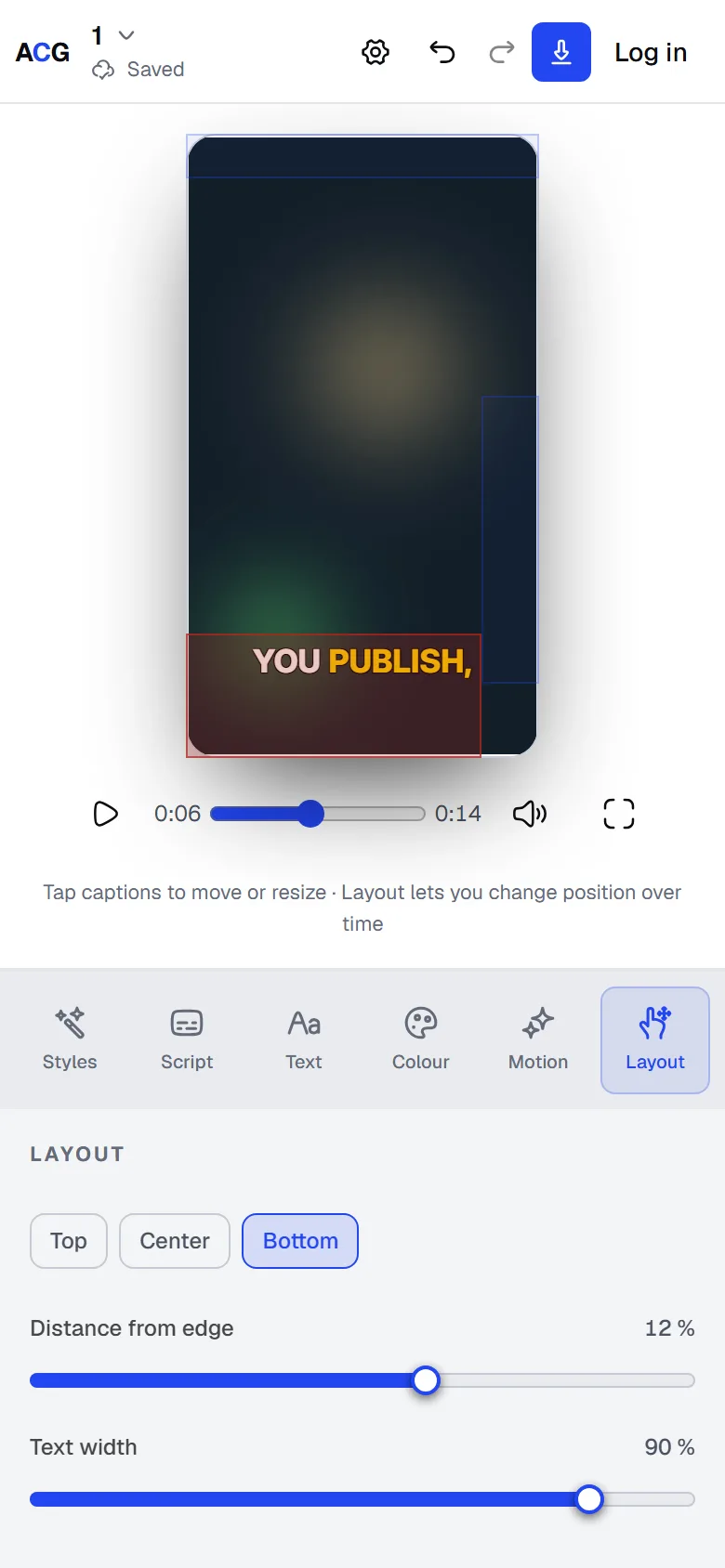
- Keep lines short. A narrow phone frame fits a few words at a time, and the editor groups up to four words per line by default.
- Mind the right edge. A wider Text width or bigger text can reach the like and comment buttons; the rail turns red as soon as the text touches it, and the slider pulls the lines back in.
- Already have a frame? The free safe zone checker overlays the same regions on a screenshot or a video you drop in.
Can you still use Apple Clips Live Titles?
Only if Clips is already yours. Apple's page Save your Clips videos says Clips is no longer being updated and stopped being available for download to new users on 10 October 2025. If you downloaded it before, you can redownload it from your Apple account in the App Store, and Apple says you can keep using it on iOS 26 and iPadOS 26 or earlier. The page does not say what happens on later versions.
Live Titles were the closest thing an iPhone had to built-in captions. Apple's Live Titles guide describes them as animated titles you create with your voice: the words appear on the video as you speak, and your speaking pace sets their timing. In Apple's steps:
- Open a video in Clips, tap the Effects button, then the Live Titles button.
- Choose a title style, then close the panel.
- Touch and hold the Record button and speak. The title is written from what you say.
- To fix a word, tap the clip, open Effects, tap Live Titles, then Edit Text.
- To record in another language, use the Switch Language button in the Live Titles panel.
The first time you add a Live Title to existing voiceover narration, Clips asks for access to Speech Recognition. What the guide does not cover is the common case for a creator: a video you already filmed in the Camera app. It describes titles made from speech recorded in Clips and from voiceover narration, and says nothing about writing titles from the sound of a clip imported from Photos. Its video page lists three aspect ratios, 16:9, 4:3 and Square, and says imported photos and clips keep their original aspect ratio and orientation; it names no 9:16 option, so check the shape of what you export before posting it as a Reel or Short.
Does iMovie on iPhone make captions from speech?
Not according to Apple's guide. Adding titles in iMovie on iPhone is about animated titles you type: select a clip in the timeline, tap the Titles button in the inspector, pick a title, then tap the sample text to edit it and drag it to move it. A Full Clip Duration setting makes a title last for the whole clip. The page says nothing about automatic captions, transcription or subtitles, so a captioned video in iMovie means typing every line yourself.
What captions do Instagram and YouTube add on their own?
Both apps can caption speech for you, but what they make are closed captions: text the app draws over its own player, which belongs to that upload and not to your video file. Post the same clip somewhere else and the captions stay behind. That is the right tool when the aim is accessibility on one platform, and the wrong one when you want a styled look that travels with the video.
Instagram Reels: automatic closed captions
Instagram's closed captions help for the iPhone app says that with automatic closed captions on, the speech in a reel is written out as text at the bottom, made with speech recognition. For a new reel: tap Create (or swipe right in Feed), tap Reel, pick a video from your camera roll, tap Next twice, tap More options, and switch on Enable closed captions. A second switch, Translate closed captions, controls translations. For a reel you already posted, open it from your profile, tap Options, then Edit, then More options.
Instagram's help also refers to a Captions sticker on reels, and its page on it explains how viewers turn off the translation, not how a creator adds one. Without an official page for adding it, its steps are not given here.
YouTube Shorts: automatic captions and the Text tool
YouTube's automatic captioning page covers long-form videos and Shorts together. When automatic captions are available they are published on the video automatically, they may not be ready the moment you upload, and YouTube asks creators to review them in YouTube Studio under Subtitles. Its list of reasons captions do not appear includes unsupported languages, poor sound, a long silence at the start and overlapping speakers.
For words that are part of the picture, YouTube's Shorts editing tips point to the Text tool and the Timeline, where you drag the start and end of each text clip. YouTube suggests text can help a viewer follow along word for word, but each line is typed and timed by hand.
TikTok and CapCut
This guide leaves TikTok's built-in captions to TikTok's own help. If you edit in CapCut on your phone, its auto captions are covered step by step in how to add auto captions in CapCut, with each step linked to CapCut's help.
What if the upload or the download stalls on an iPhone?
- The file is too long or too large. The free plan takes videos up to 10 minutes and 500 MB. Trim the clip first, or post it as shorter parts.
- The preview will not play. A phone video can use a codec a browser cannot play. Use Retry video on the preview first; if it still fails, an MP4 copy with H.264 video usually opens. Supported files has the details.
- The render takes a while. Rendering happens on our servers and continues in the background. You can leave the dialog and come back to it to download the finished video.
- The language is Korean or Thai. Burned-in captions in those scripts are not supported yet, because no bundled caption font can draw them. (Japanese and Chinese burn in with Noto Sans JP.) Download an SRT or VTT file instead and add it where you post.
- You were a guest and came back a day later. Guest projects last 24 hours. Sign in before you leave and the project moves into your account with your edits.
The difference between MP4 and caption files is covered under exports in the help: the MP4 carries your style everywhere, while SRT and VTT leave the look to the app that shows them.
When is another route the better choice?
- You only need captions for accessibility on one platform. Instagram's automatic captions are a switch while you post, and YouTube publishes its automatic captions on its own when they are ready.
- You are editing the whole video in CapCut anyway. Captioning there is one less export; CapCut's auto captions work on the phone app.
- You have no connection. Transcription and rendering run online, so a browser tool needs signal for the upload and the download.
- You want one typed line, not a transcript. A title in iMovie or a text clip in the Shorts editor is quicker than transcribing.
Where the browser route earns its place is a finished clip that needs word-timed, styled captions burned in, checked against each app's interface, and posted to more than one platform without being captioned three times. The karaoke caption style and highlighted-word captions pages show what that looks like.
Frequently asked questions
Does the iPhone have a built-in way to add captions to a video?+
Not one that writes captions from speech into a video you already filmed. Apple's Clips app could make Live Titles from your voice as you record, but Apple stopped offering it to new users on 10 October 2025. iMovie on iPhone adds titles you type, and Live Captions in Accessibility shows captions on your screen without writing them into a video.
Can I still download Apple Clips?+
Only if you downloaded it before. Apple says people who previously had Clips can redownload it from their Apple account in the App Store, and can keep using it on iOS 26 and iPadOS 26 or earlier. New users cannot get it, and it is no longer updated.
Are Instagram's automatic captions burned into the video?+
No. Instagram's help describes them as closed captions that it creates with speech recognition and writes out at the bottom of the reel. You switch them on under More options while posting, and they belong to that reel on Instagram, not to your video file.
Which caption styles can I export on the free plan?+
Every style previews on your own video for free. The word-highlight styles (Karaoke Highlight, Marker Underline and Big Word Focus) export on Starter, and the free plan exports a smaller set. If a style needs Starter, the download dialog says so and offers a free one instead.
Do I need an account to caption a video on my iPhone?+
Start without an account; sign in free to download. You can upload, correct the transcript and try styles as a guest. A free account covers 3 video projects exported each month, videos up to 10 minutes and 500 MB, at up to 1080p, and no plan adds a watermark.
Where does the captioned video go after I download it in Safari?+
Apple's support page says files downloaded from the internet go to the Downloads folder in the Files app, and that a Downloads button appears next to Safari's search field right after a download. Open the MP4 from there to share it or save it to Photos.
How high should captions sit on a TikTok or Reel?+
Clear of roughly the bottom fifth of the frame and the right-hand edge, where the apps put their own text and buttons. In our editor a new vertical project already starts there, 28% from the bottom at 62% text width. Projects created before 9 November 2026 keep 12% from the bottom, inside the TikTok and Reels bottom bands, until you move them.
Caption your next clip from your phone
Choose a video in Safari, fix any word the transcript got wrong and watch a style play on your own footage. Start without an account; sign in free to download.
Upload your video