Download your video and caption files
Two kinds of download leave the editor: an MP4 with the captions drawn into the picture, and text files with the words and their timing. Only a new MP4 uses your monthly allowance.
Last updated
How do you download the video with captions?
Press Download
It is the filled button at the top right of the editor. Correct the words and choose the style first: the video is made from exactly what is on screen.
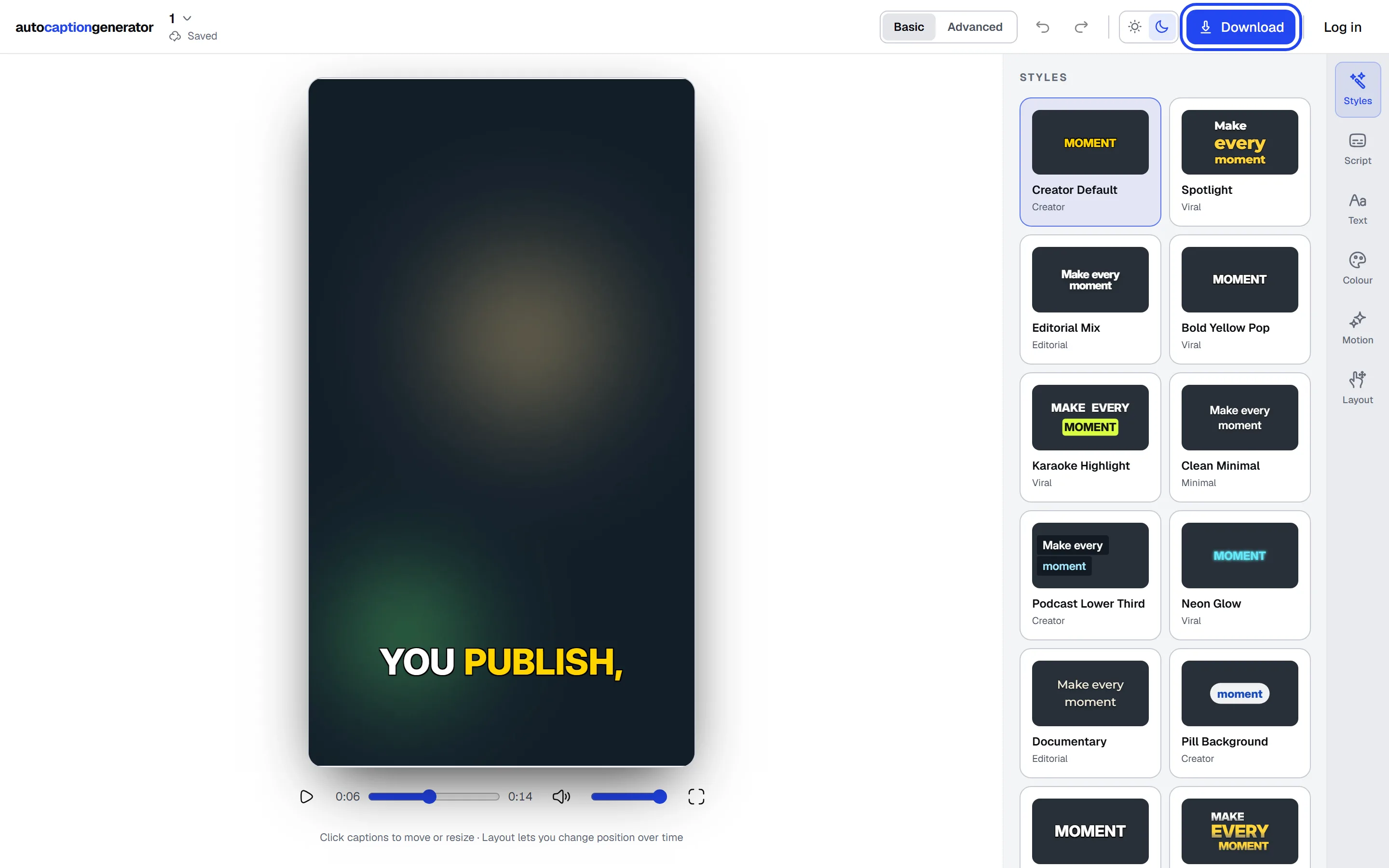
Download, at the top right of the editor. Sign in if you are asked to
If you started without an account, the dialog asks you to sign in, free, with Google, a code by email or a password. Signing in keeps the project and every edit, then shows the download options.
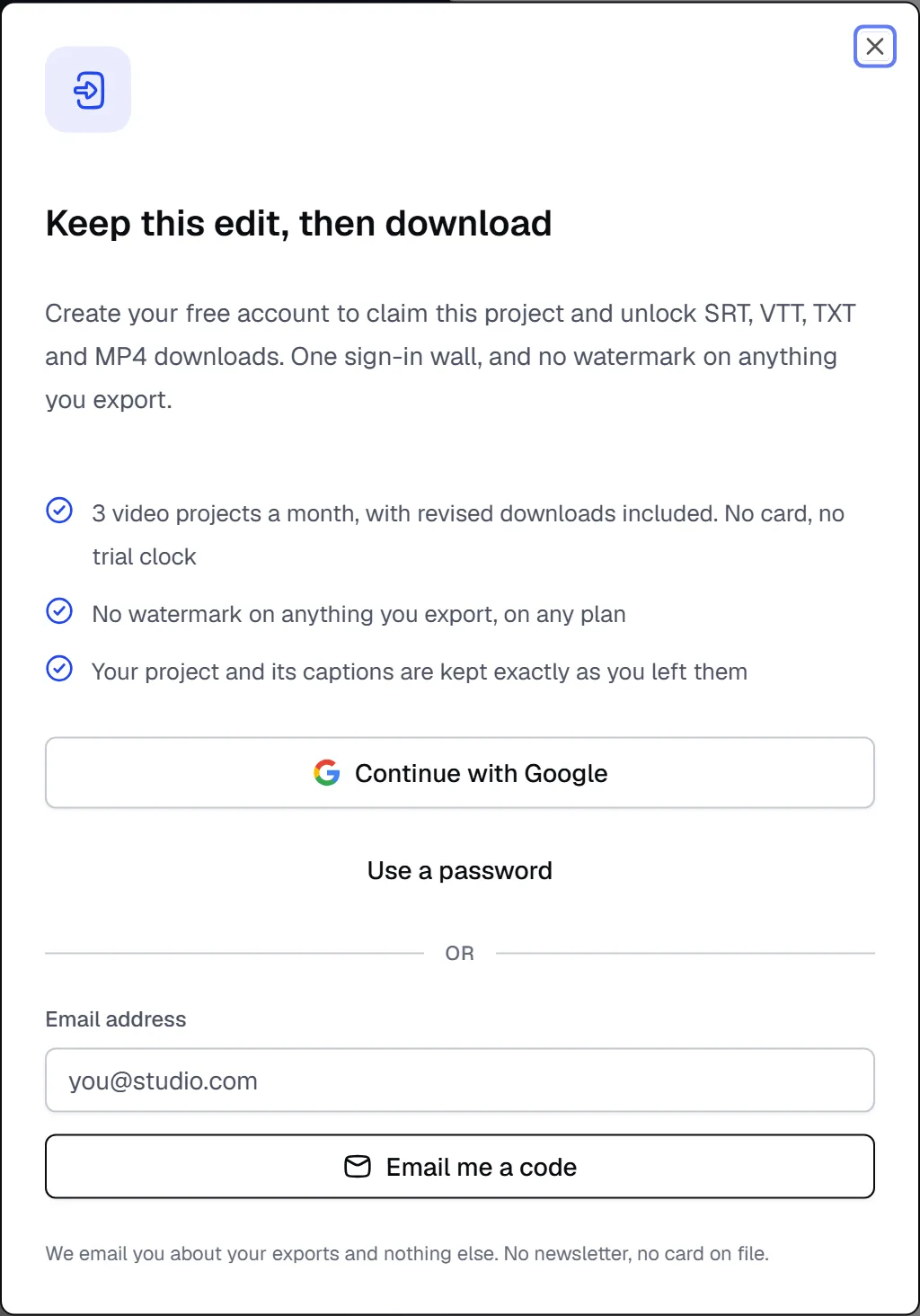
The one sign-in step before any download. Choose the resolution and press Download video
Free exports at 1080p; 4K is for Starter. The line above the button says what the download will use from your allowance before you press it.
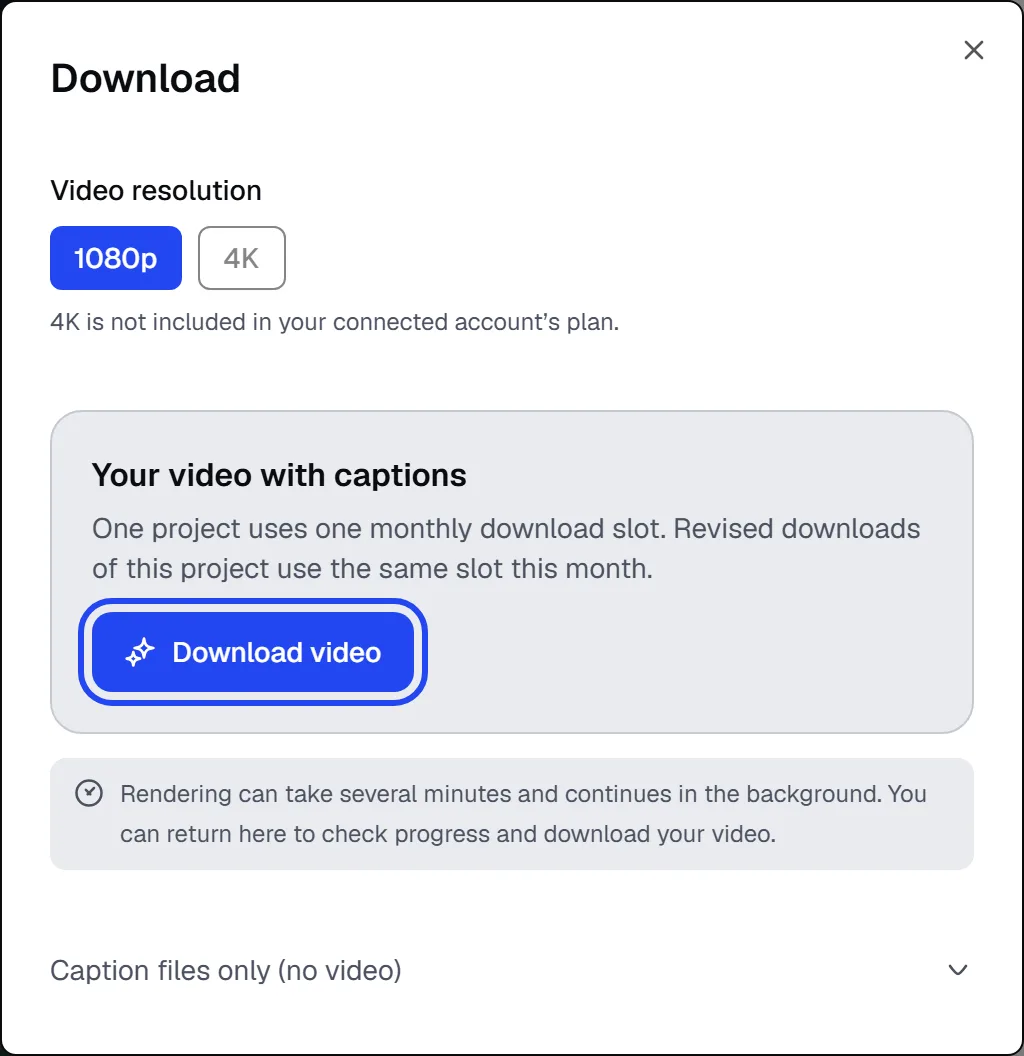
The download options for a signed-in free account. Wait while it is prepared, then download it
A progress bar shows the render. You can close the dialog and keep editing or leave; reopen Download to check on it. For a video longer than five minutes, you are emailed when it is ready. When it is done, the button says Download video again and saves the MP4.
How do you download SRT, VTT or TXT?
Open Download and expand Caption files only (no video)
It is at the bottom of the dialog, and stays there even when the video part says your allowance is used or the style is not included.
Press SRT, VTT or TXT
The file is made from the script as it is now and saved straight away. Nothing is rendered and nothing is used from your allowance.
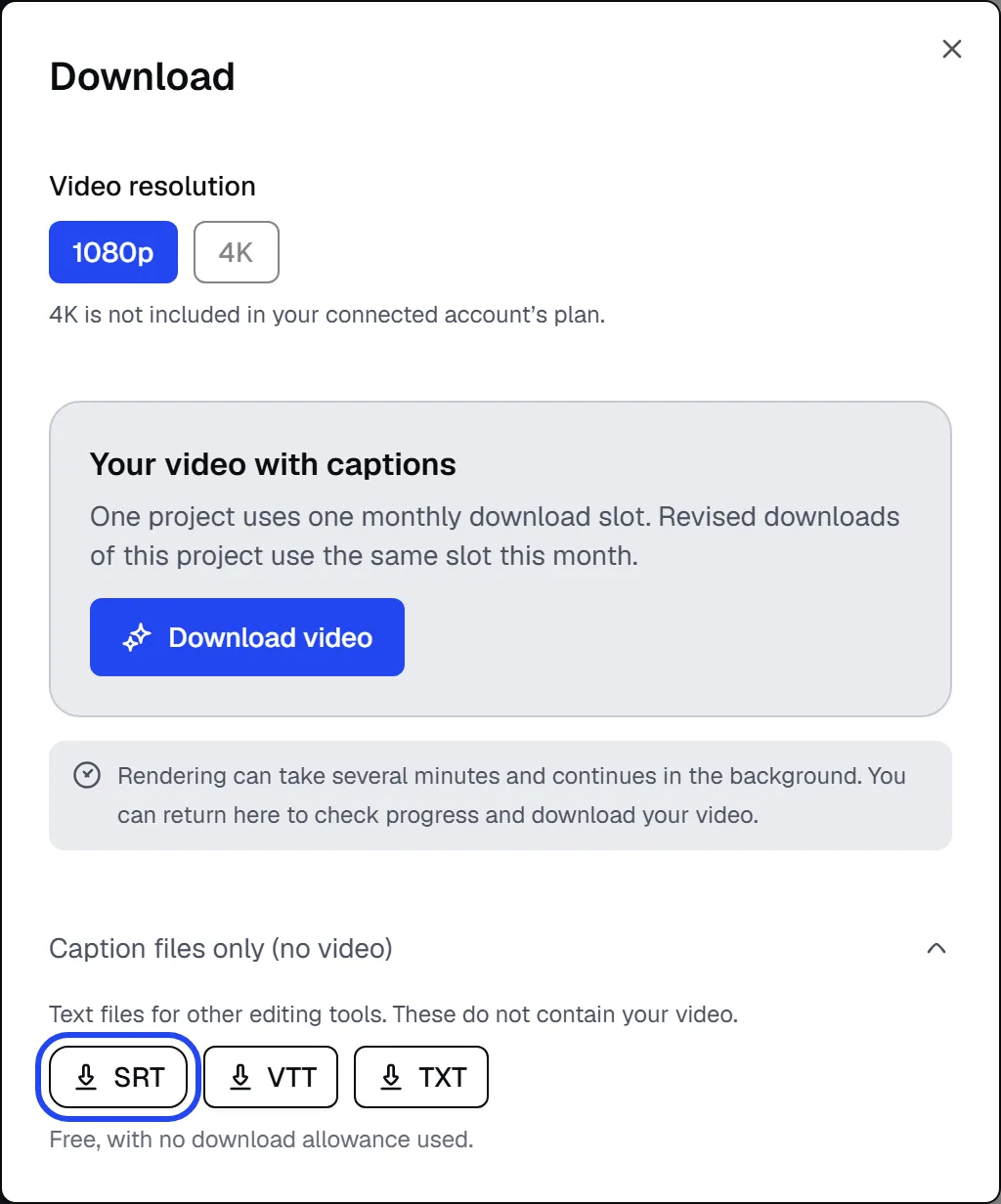
Caption files, free on every plan.
| File | What is in it | Use it for |
|---|---|---|
| SRT | Numbered subtitles, each with a start and end time. | Video editors and upload forms that ask for SubRip (.srt). |
| VTT | The same subtitles under a WEBVTT header, the format web players read. | Web video players and course platforms that ask for WebVTT. |
| TXT | The words only, one script line per line, no timing. | Notes, show notes, a blog post or checking the text. |
Each subtitle in an SRT or VTT file is one line of the script, with that line's timing. Styles, colours, animation and position are not part of these files; the player that shows them decides how they look.
Which downloads use the monthly allowance?
| You download | Free | Starter |
|---|---|---|
| The first video of a project this month | One of your 3 projects | One of your 200 exports |
| A new video of the same project after changing it | Nothing more this month: the project already has its slot | One more export |
| A finished video again, unchanged | Nothing | Nothing |
| A render that fails or is cancelled | Nothing: the slot is given back, unless another video of the project is using it | Nothing: the export is given back |
| SRT, VTT or TXT | Nothing, ever | Nothing, ever |
Asking for the same video again, with the same words, style and resolution, returns the one already made instead of preparing another. The allowance starts again on the first day of each month (UTC). Plans and limits covers the rest.
What if your style is not included in your plan?
Every style can be previewed, but not every style exports on Free. The free styles export on Free; Starter exports all of them. If the style on screen is not included, Download says so before anything is prepared and nothing is used.
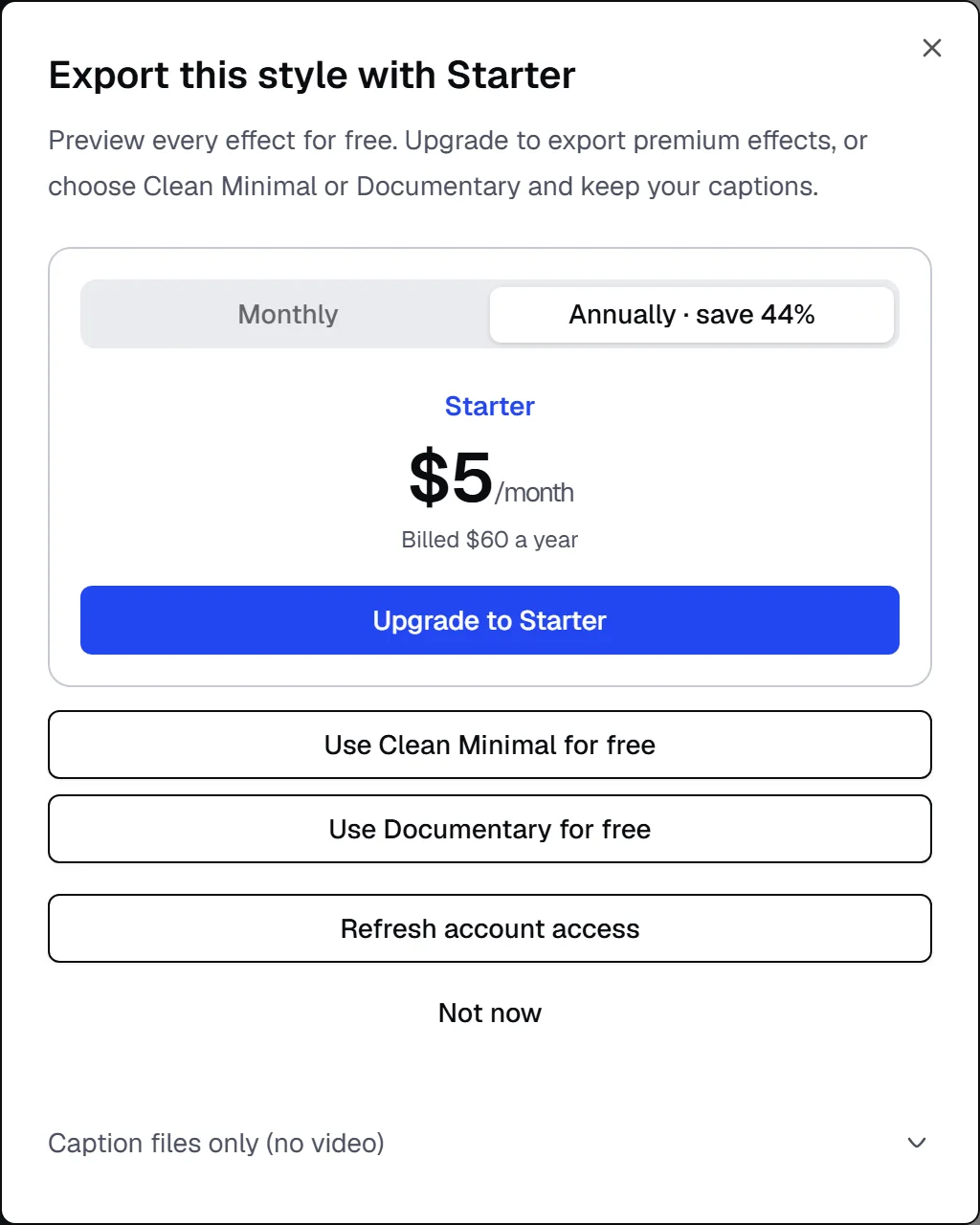
- Upgrade to Starter to export the style as it is.
- Press one of the Use … for free buttons to switch to a free style. Your words and timing are kept.
- Or expand Caption files only (no video): SRT, VTT and TXT are always available.
What the download does not do
- It never adds a watermark, on any plan.
- The MP4 has the captions drawn into the picture. It does not carry a separate caption track that viewers can turn off; upload an SRT or VTT beside it for that.
- Caption files do not carry the style, colours, animation or position.
- It cannot burn in Korean and Thai text yet. Those languages download as SRT or VTT.
- It does not trim, crop or reframe the video, or make a separate audio file.
When a download goes wrong
- "Your video is still being prepared." The original video has not finished uploading and processing. Keep the tab open; caption files work in the meantime.
- It waits instead of starting. Free prepares one video at a time and Starter up to 3. The next one starts when the current one finishes.
- "No render worker is responding." The video is queued and starts when a worker is back. Nothing is used until it has rendered.
- It failed. Press Try again. A failed render gives back what it used from the allowance.
- "We have lost track of this export." The render may well be finished. Press Check again.
- The download link expired. It renews by itself; press Download video again when it is ready.
- The allowance is used. The dialog says when it starts again. Finished videos and caption files stay available; see plans and limits.
- Still stuck? Contact us with the project name and roughly when it happened. Never send a password or payment details.
Frequently asked questions
Do I need an account to download?+
You can start without an account. Sign in free to download: with Google, a code sent to your email, or a password. The project you were editing moves into your account with your edits.
Do SRT and VTT files keep my caption style?+
No. They carry the words and their timing; the player or platform they go to decides how they look. Download the MP4 when the style has to be seen exactly as designed.
How long does preparing the video take?+
Usually a few minutes, longer for long videos. It continues in the background: close the dialog and come back to it, or find the finished video in your projects.
Where do finished videos go?+
Back in the Download dialog, ready to download again, and in **Your projects** from the account menu. Media is kept for 7 days on Free and 90 days on Starter, so keep your own copy.