Choose a caption style
A style is a finished look for the captions: font, colours, motion and position chosen together. Pick one in a click, then change anything about it in the other panels.
Last updated
How do you choose a style?
Open Styles
Styles is the first button in the rail on the right, and it is the panel a new project opens on. Each card plays a short sample of the style, with its name and its group underneath.
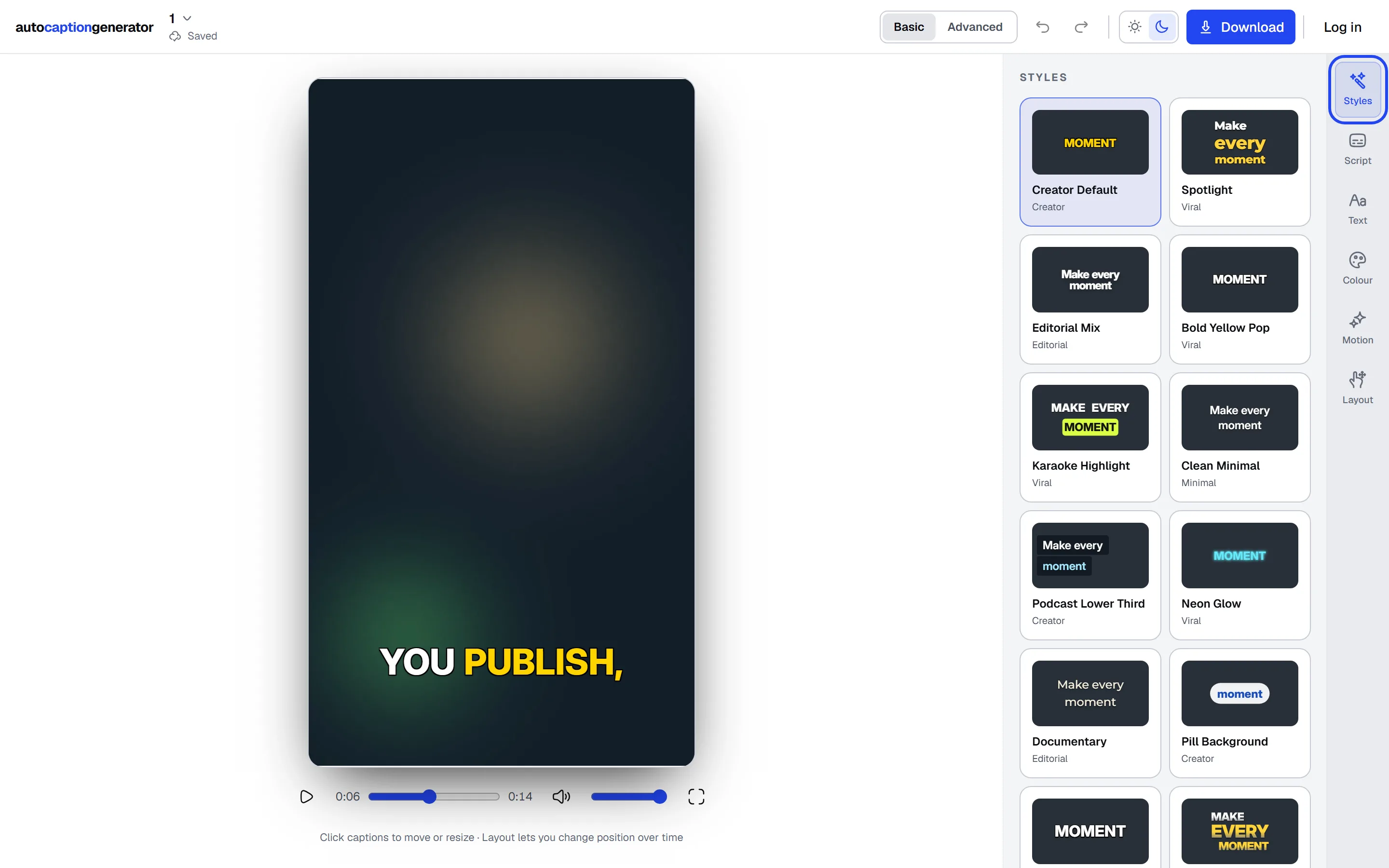
The Styles panel: every style as a card with a live sample. Click a card
The captions on your video change at once, and the card you chose is outlined. Nothing is prepared or downloaded, so try as many as you like.
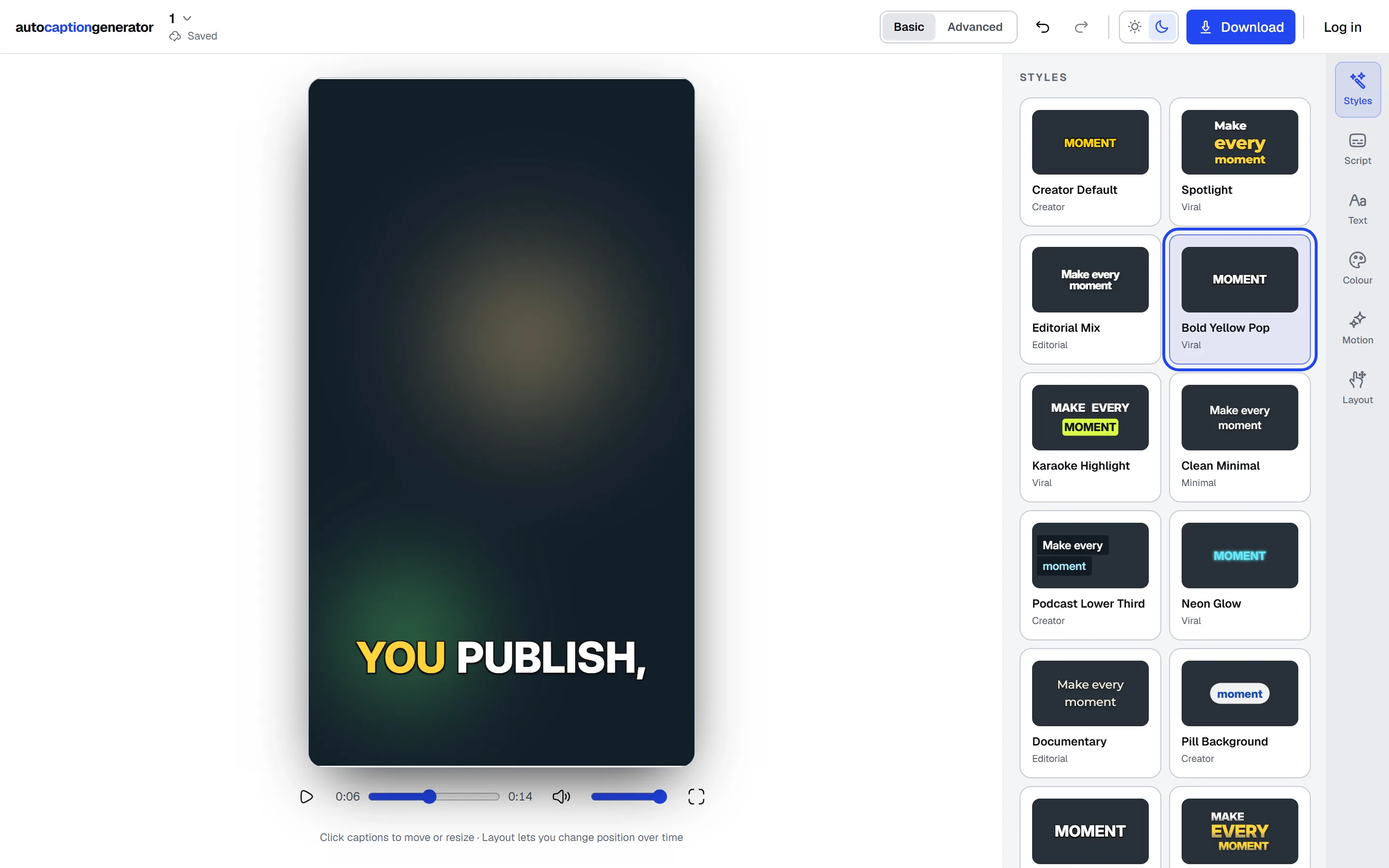
Choosing a card redraws the video in that style. Play a few seconds
A still frame hides most of what a style does. Press play, or Space, and watch how the words arrive and which word is picked out as it is spoken.
Adjust what is not quite right
Every part of a style can be changed afterwards: the font and size in Text, the colours in Colour, how words appear in Motion and where they sit in Layout. The changes save on their own.
What kinds of style are there?
The name under each card is followed by its group. The groups describe the look, not what a style can be used for: any style works on any video.
| Group | What the styles have in common | For example |
|---|---|---|
| Creator | Bold, clean text with the spoken word picked out, the look most short videos use. | Creator Default, Pill Background, Emoji Pop, Marker Underline |
| Viral | Big type and strong motion: words that pop in, glow or are shown one at a time. | Bold Yellow Pop, Karaoke Highlight, Spotlight, Neon Glow, Big Word Focus |
| Editorial | Mixed fonts and quieter motion, for interviews, essays and documentary work. | Editorial Mix |
| Minimal | Plain, readable lines that stay out of the way of the picture. | Glass Focus |
A new project starts in Creator Default unless you began from a style on one of the site's pages, in which case it starts in that one. Creator Default is a Starter style: you can try it, and every other style, on your own video, and on Free you switch to one of the free styles when you are ready to download. For examples of each look on real footage, see the caption styles.
What happens to your changes when you switch style?
They come with you. The editor remembers what you changed yourself, separately from the style, and lays those changes over whichever style you choose next. Make the text lowercase, then switch from one style to another, and it stays lowercase.
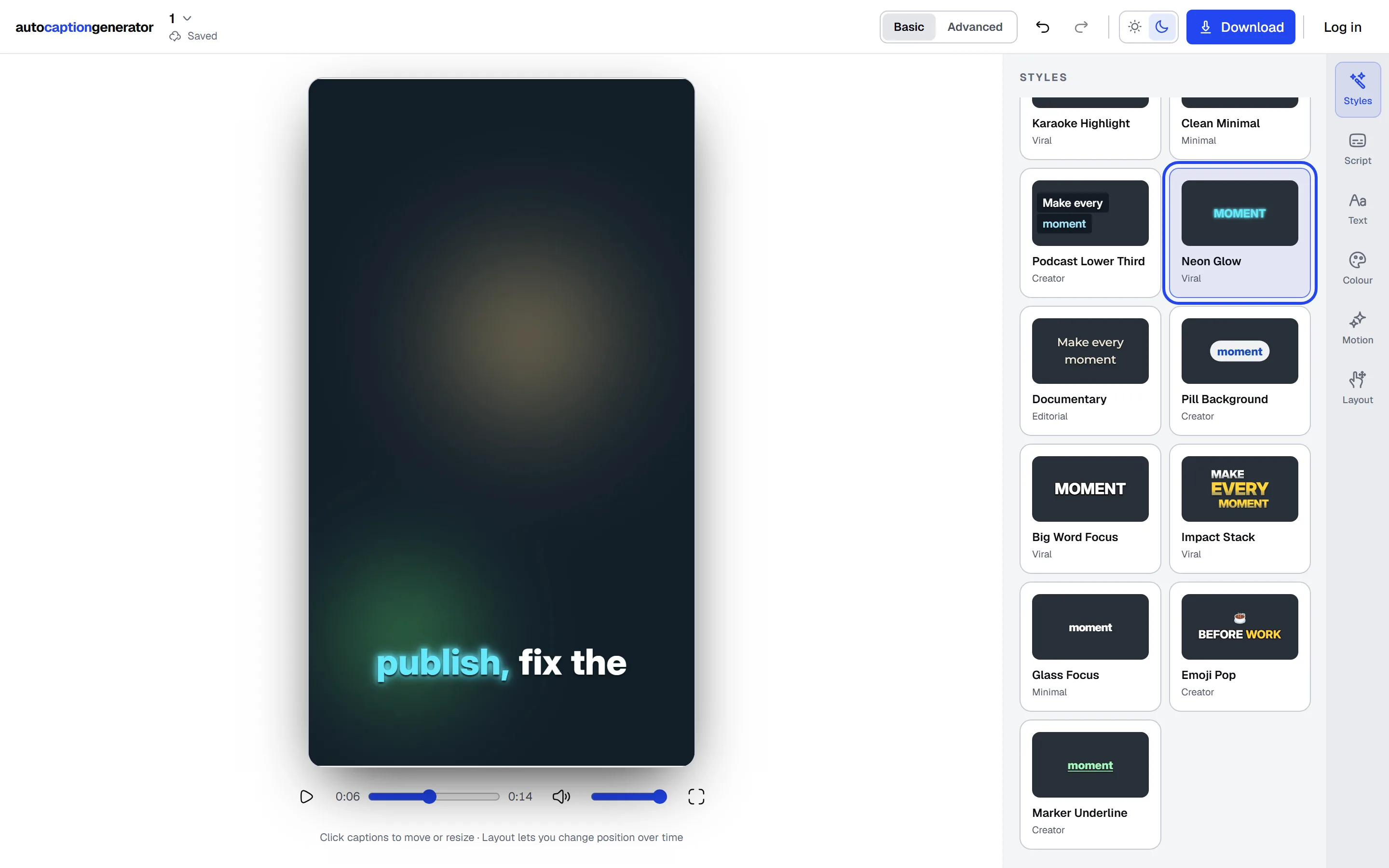
- Kept: the words and their timing, and anything you set in Text, Colour, Motion or Layout.
- Replaced: everything you did not touch, which takes the new style's values.
- To go back: press undo in the toolbar. Choosing a style is one step, so one undo returns the previous style with your changes as they were.
- To start a style clean: there is no reset button. Undo your changes one by one, or set each control back by hand. The editor tour shows where each control lives.
Which styles can a Free export use?
On Free, a video is prepared in the styles your account was given as free (Download names them). Starter prepares every style. Caption files (SRT, VTT and TXT) carry no style at all, so they download on any plan whatever style is chosen.
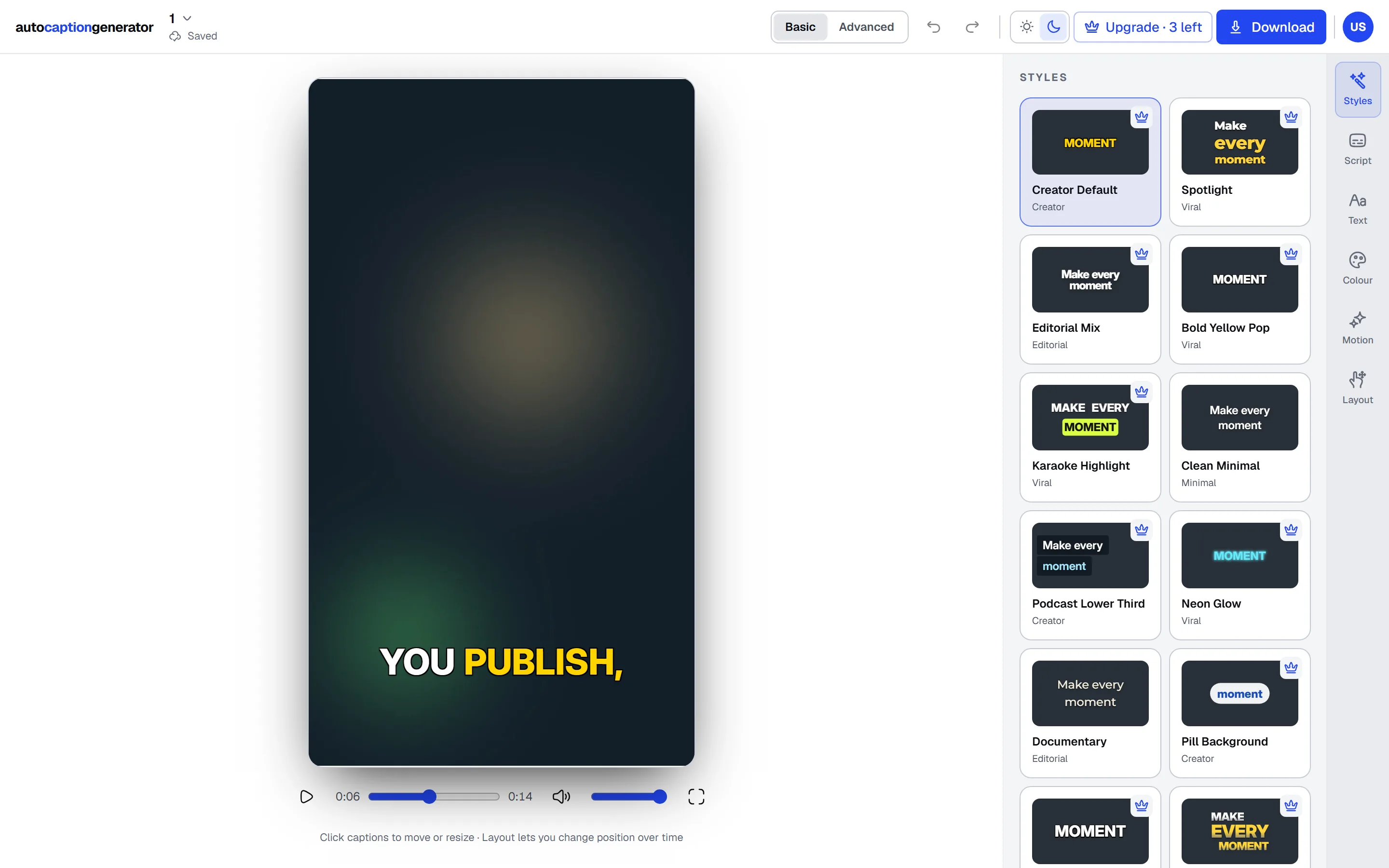
- The crown. Signed in on Free, a crown sits on every card your plan does not export. Before you sign in there are no crowns, and on Starter there are none because every style is included.
- Ordinary changes are always included. Font, size, spacing, capitals, every colour, the outline, the shadow, the position and the text width can be changed on a free style and still export on Free.
- Some effects are Starter effects on any style: a motion other than Block, emphasis on the spoken word, an entrance other than None or Fade, a Transparent or Metallic text finish, a background behind the lines or words, and an emoji accent. A free style keeps the effects it was designed with.
- Choosing a free style tidies up for you. Signed in on Free, picking a free style removes the Starter effects you had added, so the video can export, and keeps your ordinary changes.
Press Download with a Starter style chosen
The download options check the style before anything is prepared, so no video is used from your allowance.
Read what the dialog offers
It says the style is not included, offers Starter, and has one button per free style, such as Use followed by the style's name for free. The caption files are still offered underneath.
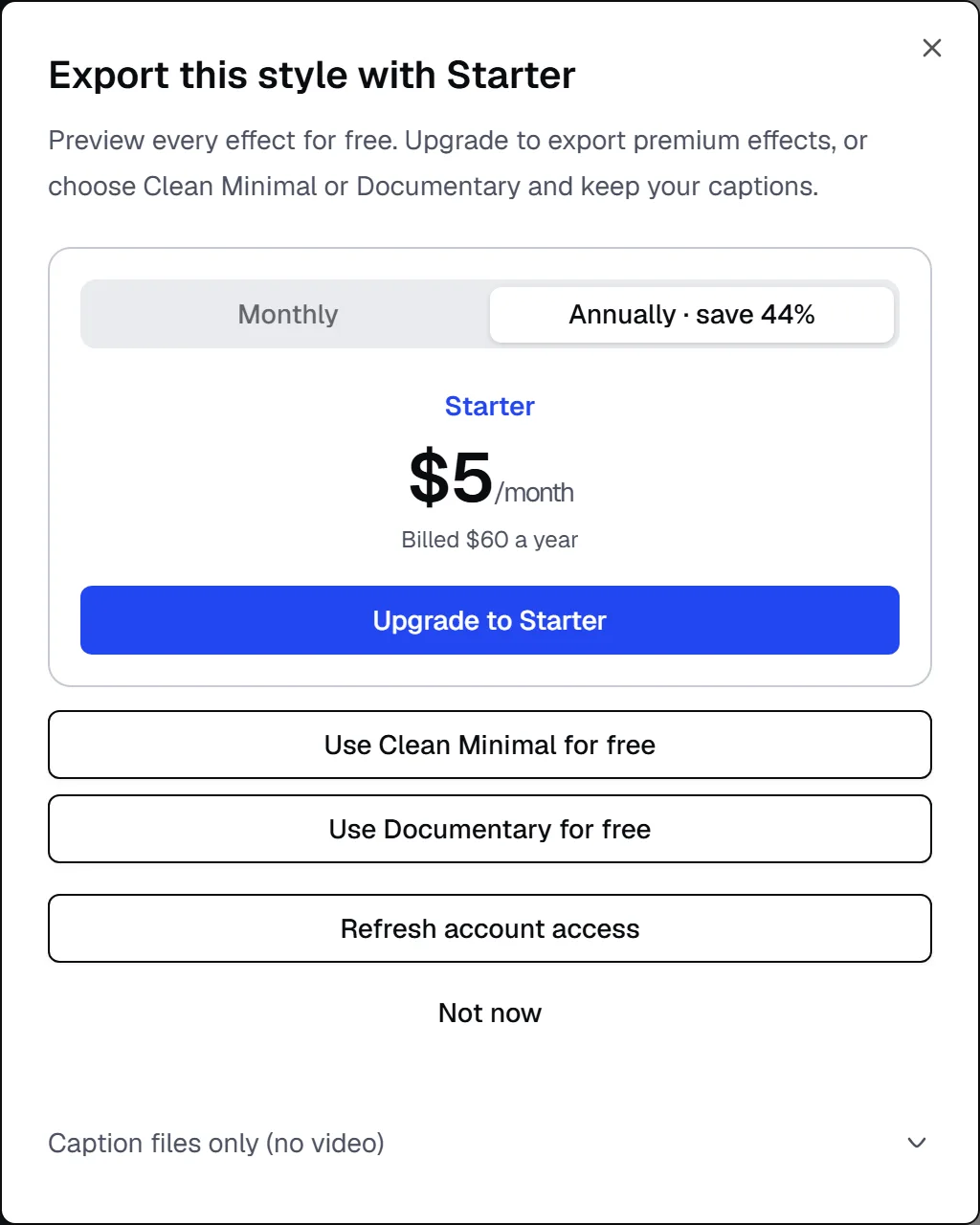
Download names the free styles and switches to one in a click. Switch, or keep the style
A free-style button changes the style and returns you to the download options. To keep the style you chose, Starter exports it with 200 videos a month.
What styles do not do
- A style does not change the words, re-cut the script lines or move their timing.
- A style applies to the whole video. There is no per-line or per-word style.
- There is no custom font upload and no saved custom style. The fonts are the ones listed in Text.
- A video you already prepared keeps the style it was made with. Change the style, then prepare the video again.
Frequently asked questions
Does choosing a style change my words?+
No. A style changes how the words look and move. The words, and when each one is spoken, stay exactly as they were.
Can I save my own style as a new card?+
No. Your changes stay with the project you made them in. To reuse a look on another video, choose the same style there and make the same changes.
Can one line have a different style from the rest?+
No. A style applies to the whole video. Layout can move the captions to a different place from a chosen moment, but the look stays the same throughout.
Why can I preview a style I cannot export?+
So you can judge it on your own footage before deciding. Download checks the style when you prepare a video, and offers a style your plan includes instead.