How to add auto captions in CapCut
CapCut can caption your video from its speech in the phone app, the desktop app and the browser editor. Here is where the button is in each, how to fix what it mishears, what to do when it makes nothing, and when a dedicated caption tool is the better fit.
Published Updated
Every CapCut step below links to the CapCut help page it comes from, read on 4 November 2026. CapCut renames and moves its menus between versions, and its own pages do not always agree with each other (the recognise subtitles page says Captions, the inaccurate captions page says Text). Where they differ, this guide gives both.
Does CapCut have auto captions?
Yes. CapCut's auto captions turn the speech in your video into timed captions, and CapCut's help says the feature works in all three of its apps: the phone app for iPhone and Android, the desktop app for Windows and Mac, and the browser editor. Some of its help pages call the same feature "Recognise subtitles" (CapCut help).
The captions come from speech recognition, so they are a first draft. CapCut's own help says they can mishear words when there is background noise, an accent, fast speech or low audio quality, and it recommends reading them through before you export (CapCut help).
How do you add auto captions in CapCut on a phone?
- Open CapCut and start a new project with your video, or open an existing one.
- Tap Captions in the bottom menu, then Auto captions. Some app versions put it under Text first, then Auto captions; CapCut's help shows both paths (steps, Text path).
- Confirm the spoken language and, if the app offers one, a caption template.
- Tap Generate and wait. The captions appear as a track under the video on the timeline.
- Tap any caption clip, then Edit captions, to fix a word or a line (CapCut help).
Play the whole video once with sound before you export. That is where a misheard name or a caption that lands half a second late gets caught, and on a phone it is easy to miss because the captions are small in the preview.
How do you add auto captions in CapCut on desktop or in a browser?
| CapCut app | Where to find it | Button that starts it | CapCut's page |
|---|---|---|---|
| Desktop (Windows and Mac) | Captions in the left toolbar, or Text, then Auto captions | Generate, Recognize or Create, depending on the page | Recognise subtitles |
| Browser editor | Captions in the left panel, or Text, then Auto captions | Generate | Auto captions not working |
| Phone (iPhone and Android) | Captions in the bottom menu, or Text, then Auto captions | Generate | Fix inaccurate captions |
CapCut desktop for Windows and Mac
- Open your project and put the video on the timeline.
- Click Captions in the left toolbar (the speech-bubble icon), then Auto captions (CapCut help).
- Choose the audio source and the spoken language.
- Click the button that starts recognition. CapCut's pages call it Generate, Recognize or Create; it is the one at the bottom of the auto captions panel.
- To correct a line, double-click the caption block or right-click it and choose Edit Captions (CapCut help).
CapCut in the browser
- Open your project in the CapCut web editor and select the video clip.
- Click Captions, then Auto captions, choose the language and click Generate (CapCut help).
- Click a caption block in the timeline, then Edit captions in the right-hand panel, to correct the text.
CapCut recommends Google Chrome or Microsoft Edge for its browser editor. Its separate AI captions shortcut on the web start page asks for a video "shorter than 20 minutes" (CapCut guide).
How do you fix the words CapCut gets wrong?
Open the caption editor (tap or click a caption, then Edit captions) and retype the line; CapCut saves the change as you go. To split a caption that runs too long, move the playhead to a natural pause and use the scissors icon, or Ctrl+B on Windows and Cmd+B on a Mac (CapCut help).
CapCut's help is candid that it cannot re-recognise just one section. If one passage comes out badly, its suggestion is to delete those captions, mute the music and effects so only the voice is left, and generate again. The same help page advises removing background music and effects before the first pass, which is cheaper than fixing the result line by line.
How do you style CapCut captions?
On a phone you can pick a caption template before generating. In the browser editor, captions get a Styles tab with groups such as Glow, Trending and Aesthetic (CapCut guide), and on desktop the Style tab applies one look to every line at once (CapCut help).
Two choices matter more than the template. First, how much text is on screen at once: a short line can be read at a glance on a phone, a full sentence often cannot. Second, how the spoken word is marked. A karaoke style keeps the line on screen and moves a highlight across it; a highlighted-word style shows one emphasised word at a time. Emoji captions add a picture to the key word, which suits light, fast clips more than tutorials. The caption style gallery plays each one so you can see the difference before choosing.
Why are CapCut auto captions not working?
CapCut's help page on this lists five causes (CapCut help). Most of them are about the audio rather than the app:
- Unclear audio or background noise. Music, a noisy room or distorted sound can stop the speech being detected at all.
- The wrong language, or one CapCut does not support. A mismatch produces no captions or inaccurate ones. Set the spoken language before generating.
- A weak or unstable connection. Recognition runs in the cloud, so a dropped connection interrupts it.
- A muted or missing audio track. A clip with no sound, or very quiet sound, has nothing to caption. Check the clip is not muted on the timeline.
- An outdated app. Bugs in older versions can stop captions being generated.
CapCut's fixes per app: in the browser, refresh the page and try again in Chrome or Edge; on desktop, check the connection and restart the app; on a phone, update CapCut from the App Store or Google Play. If none of that works, its page points you to CapCut support.
Does CapCut put a watermark on captioned videos?
Not because of the captions. CapCut's help says that in most cases it exports without a watermark, and that one appears when a template adds a branded ending clip, a stock asset needs attribution, or the export includes the default outro. Its fix is to delete the ending clip from the timeline and check overlay layers for branding before exporting (CapCut help).
Can you export CapCut captions as an SRT file?
Yes, on desktop and on a phone. In the export settings, turn off video export, choose Caption export, and pick SRT or TXT. CapCut's help adds a condition that catches people out: only captions made with auto captions can be exported this way, not text you typed in yourself (CapCut help). If the file will not open elsewhere, the same page suggests saving it as UTF-8 and using a path without special characters.
An SRT file carries the words and their timings, not the look. The platform or player that shows it decides the font and position, so a styled caption only survives as part of the video picture. Our help page explains the difference between an MP4 and a caption file.
When is a dedicated caption tool a better fit?
If you are already cutting the video in CapCut, captioning it there is the shortest path, and nothing above needs another app. A tool built only for captions earns its place when the captions are the job: you edited elsewhere, or you want a look CapCut's templates do not give you, or you need to be sure the words stay clear of the platform's buttons.
AutoCaptionGenerator runs in the browser, so there is nothing to install. It transcribes each word with its own start and end time, which is what lets a highlight land on the exact word being spoken. It shows where TikTok, Instagram Reels and YouTube Shorts put their buttons and captions, and no plan adds a watermark. Start without an account; sign in free to export.
Upload your video
Drop a clip on the uploader. The speech is transcribed into word-timed captions and the editor opens with your video and its transcript.
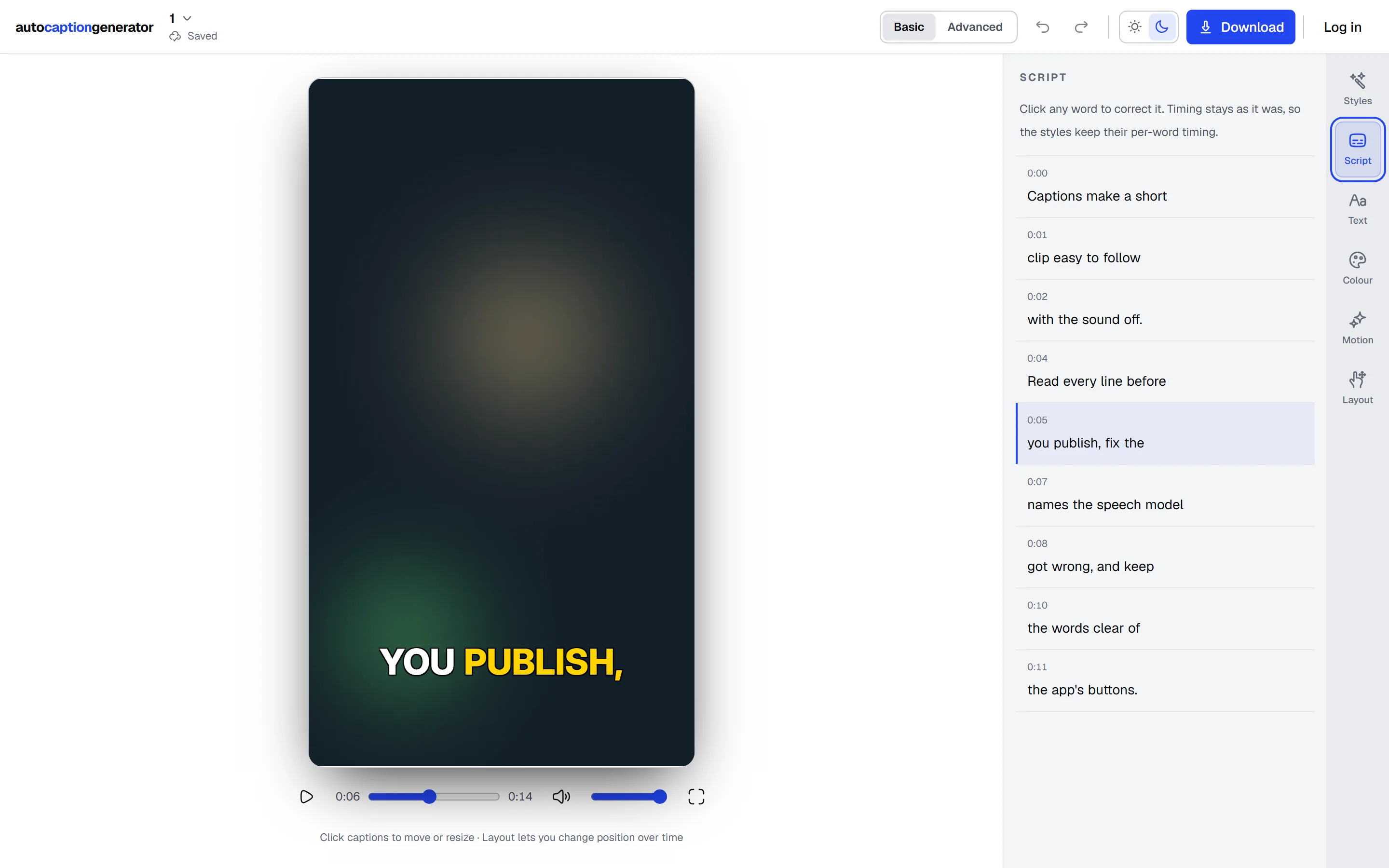
The editor after upload: the video, its captions and the transcript they came from. Correct any misheard word
Click a word in the transcript and retype it. Its timing stays where it was, so fixing a name does not shift the captions around it.
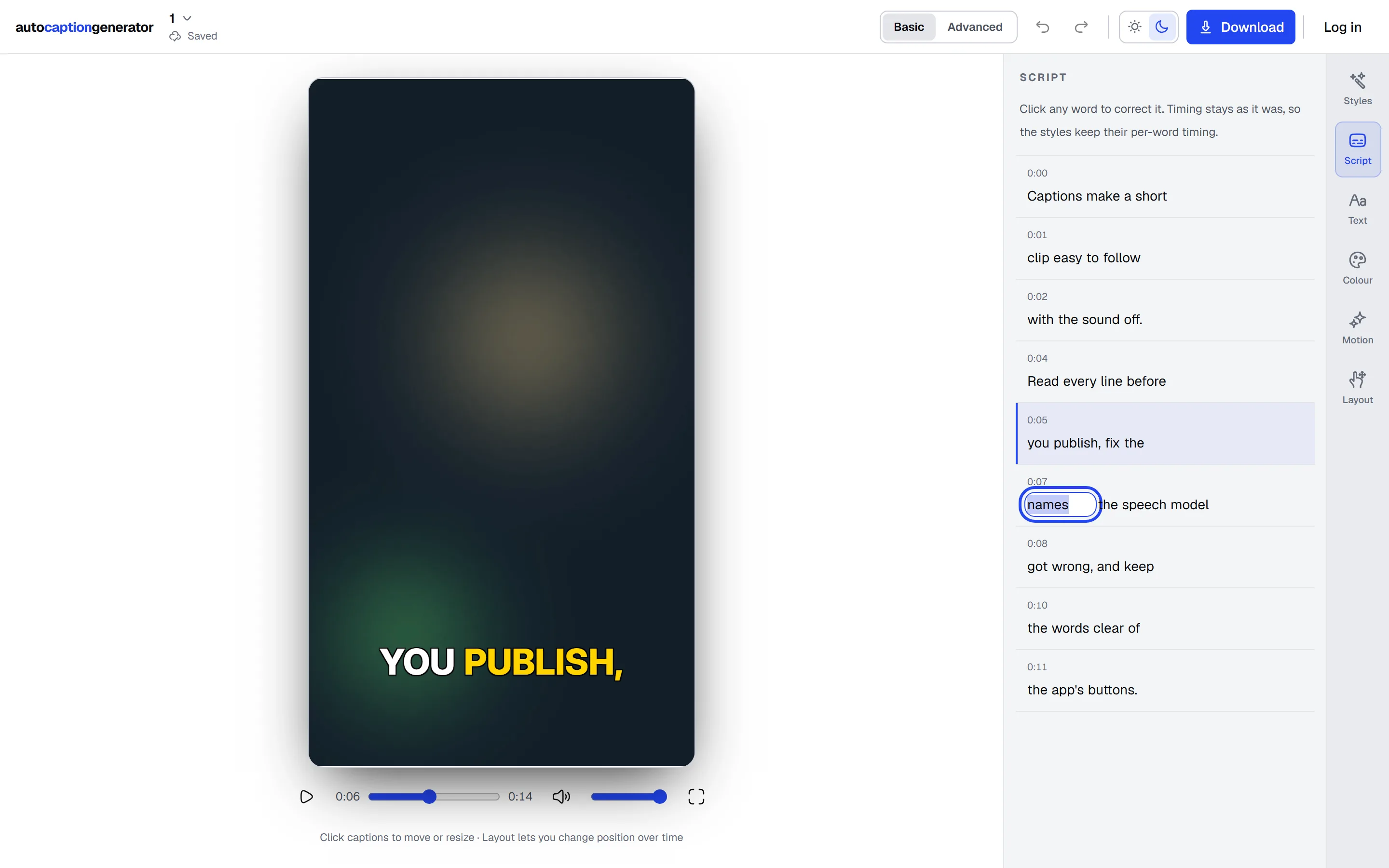
Each word in the transcript is its own control: click one to correct it. Choose a caption style
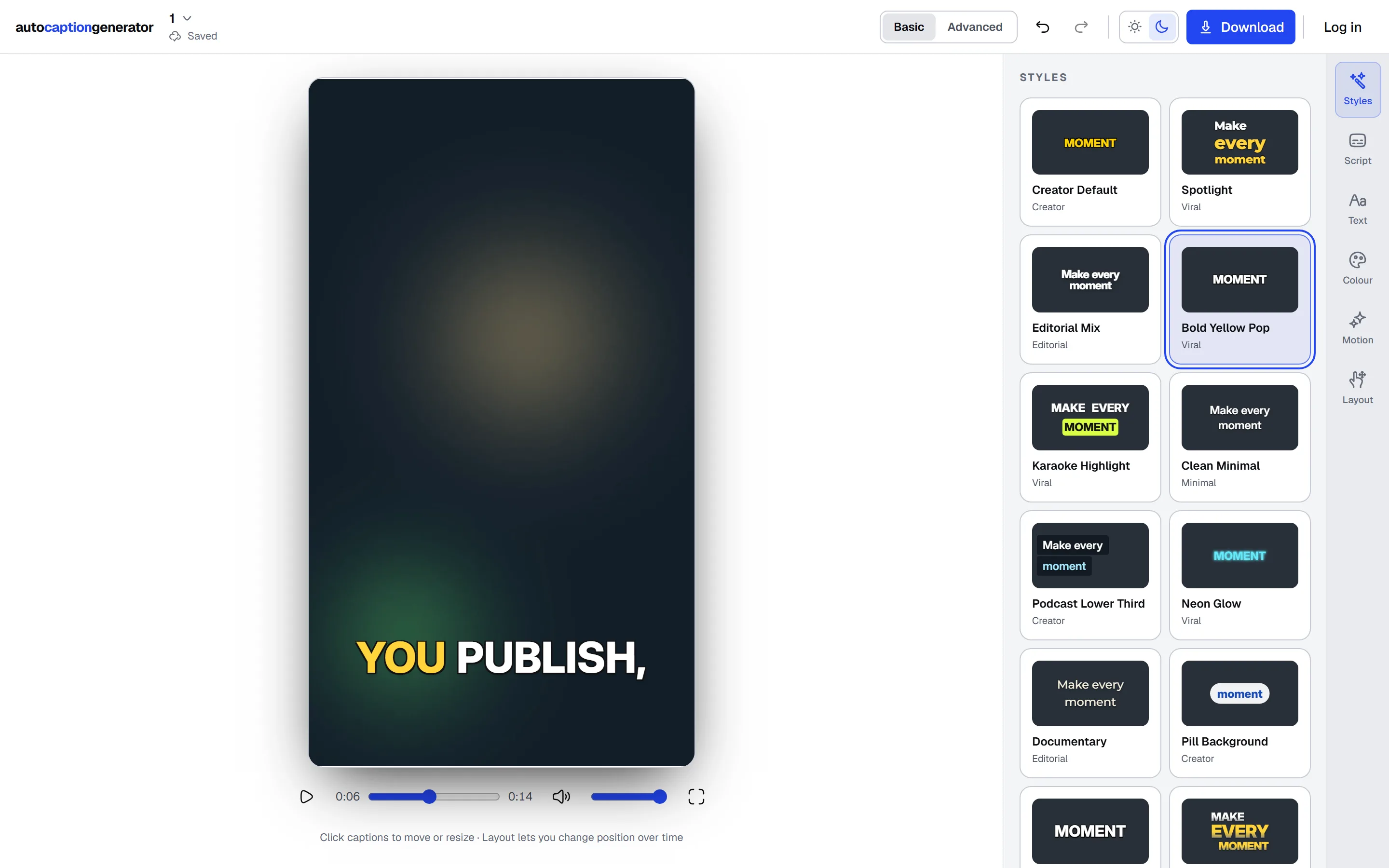
Pick a style and watch it play on your own clip. Every style previews on your video; the free plan exports a set of them and Starter adds the premium ones. The style gallery shows them all before you upload.
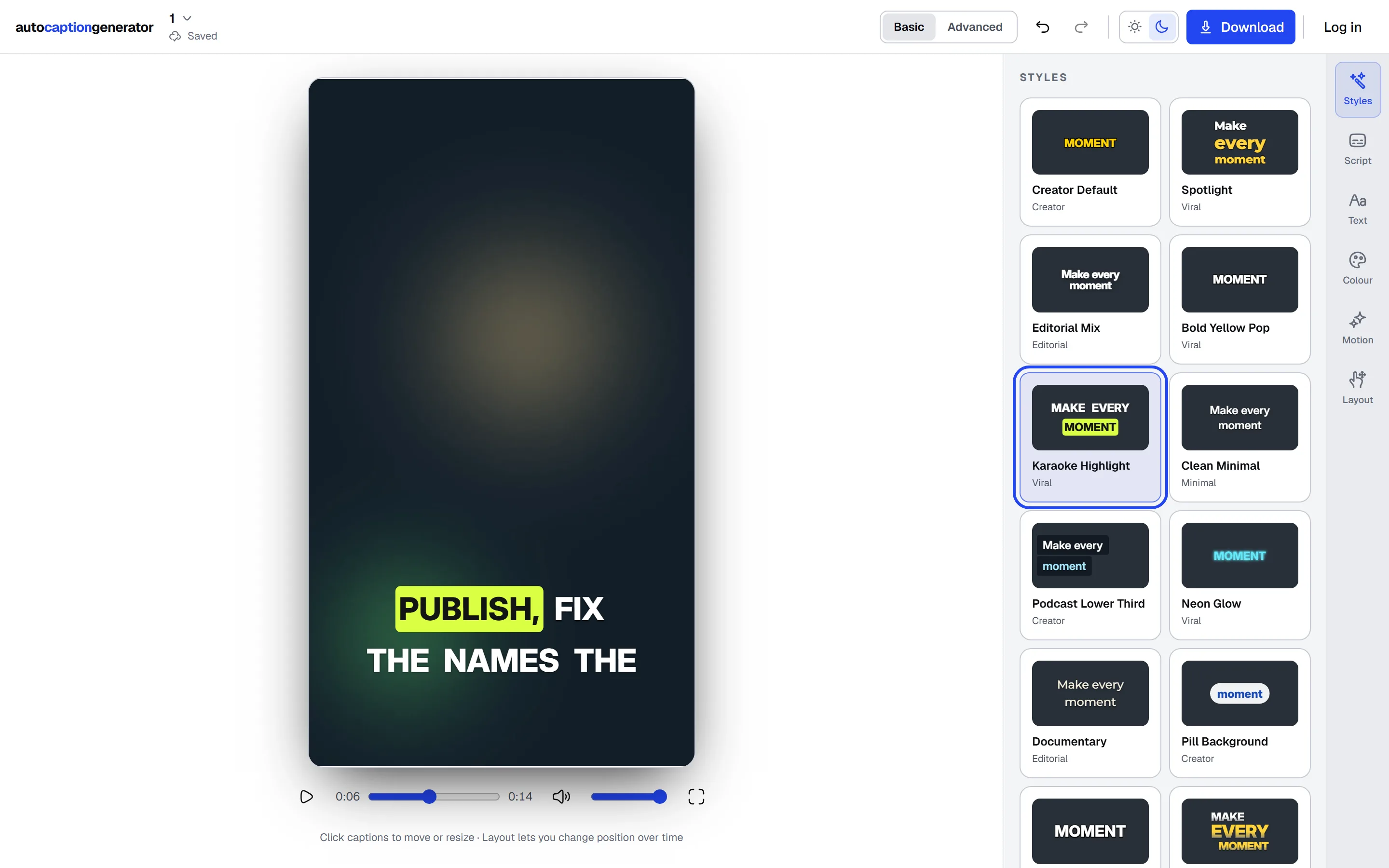
A karaoke-style highlight following the speech on the uploaded clip. Check the safe zones
Turn on the platform overlay to see where TikTok, Reels or Shorts will draw their own interface. A new vertical project starts with the captions clear of it; if you move them lower, make them bigger or widen them, keep the overlay on and stop before a zone turns red. The free safe zone checker does the same for a frame you already have.
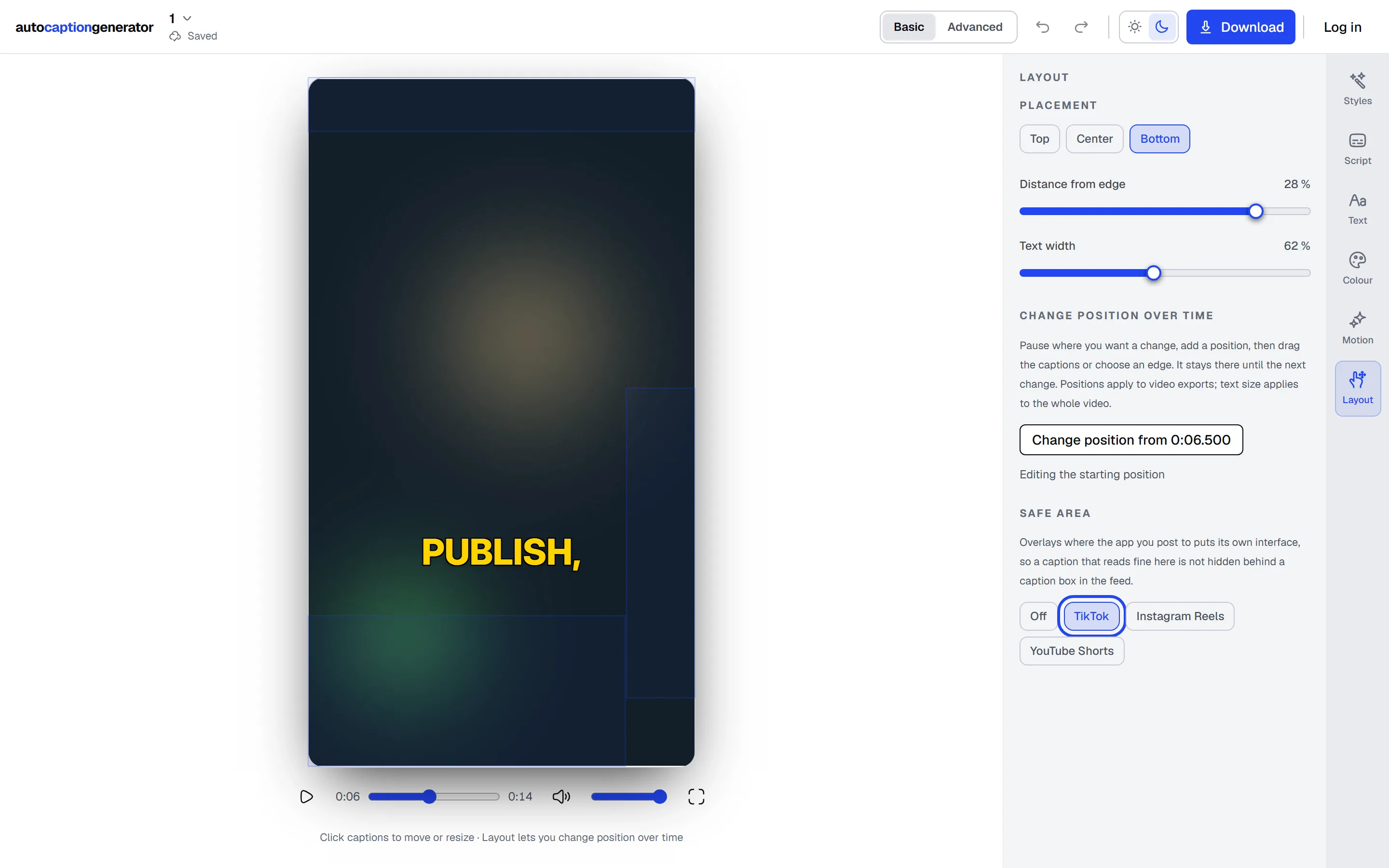
The shaded areas are where the platform's own buttons and text will sit. Sign in free and download
Sign in with Google or email to export. Download an MP4 with the captions burned in, or an SRT, VTT or TXT file for platforms that add captions themselves.
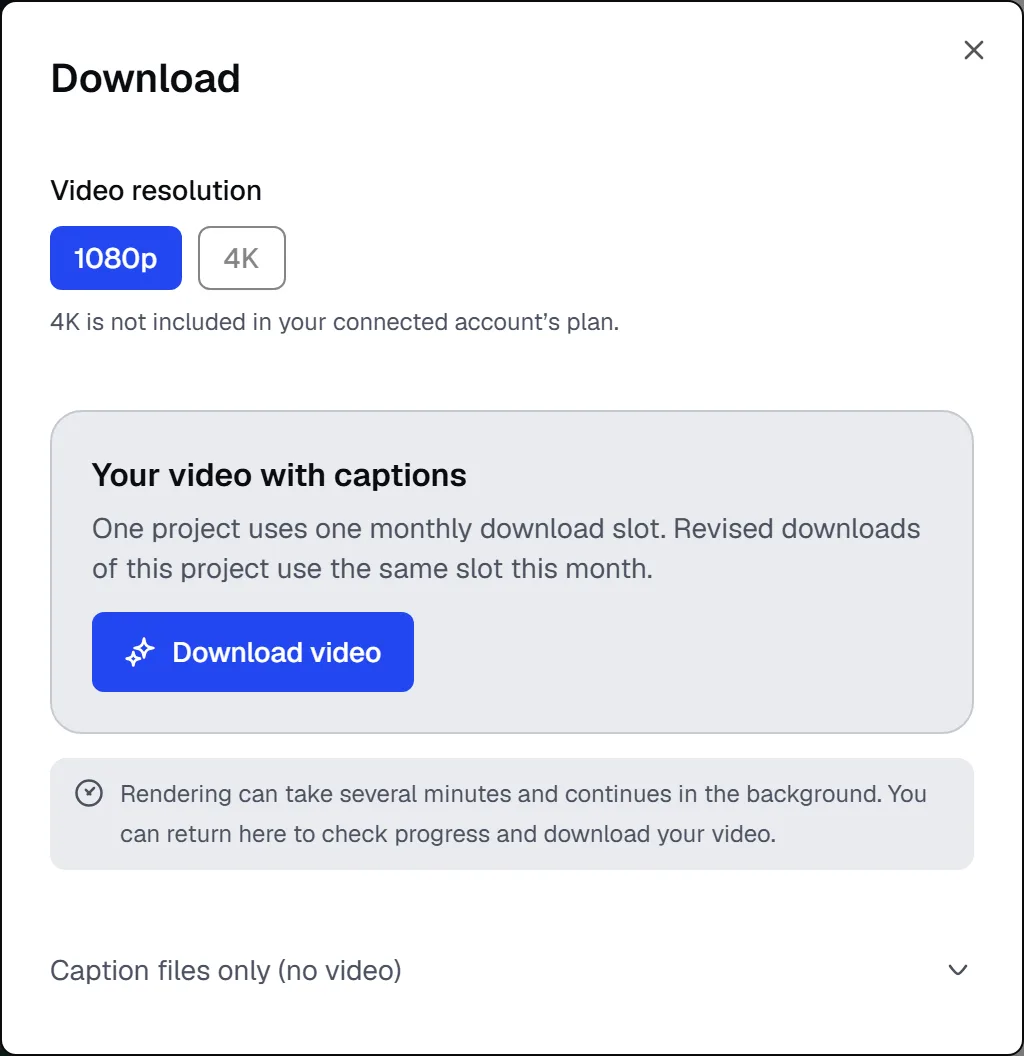
The download dialog for a signed-in free account. Caption files only opens the SRT, VTT and TXT choices.
The Free plan covers 3 video projects exported each month, videos up to 10 minutes, at up to 1080p. Longer videos, more exports and the premium styles are on Starter; pricing has the current figures.
Frequently asked questions
Is CapCut's auto caption feature free?+
CapCut's caption generator page describes it as free, and none of CapCut's help pages for auto captions mentions a paid plan. Its pricing page lists Free, Pro, Ultra and Teams plans but does not say which plan captions or caption templates belong to, so check what your account offers in the app.
Where is auto captions in the CapCut app?+
On a phone, tap Captions in the bottom menu, then Auto captions. Some versions put it under Text first. On desktop it is Captions in the left toolbar, or Text, then Auto captions. CapCut moves these menus between versions, and its own help pages show both paths.
Why did CapCut make no captions, or captions in the wrong language?+
CapCut's help names five causes: unclear audio or background noise, the wrong or an unsupported language setting, a weak connection, a muted or missing audio track, and an outdated app. Set the spoken language before generating, check the clip is not muted, and update the app.
Can I export CapCut auto captions as an SRT file?+
Yes. In the export settings choose Caption export instead of video export and pick SRT or TXT. CapCut's help says only captions created with auto captions can be exported this way, not text you typed in.
How long can a video be for CapCut's online auto captions?+
CapCut's guide to its AI captions shortcut on the web start page asks for a video shorter than 20 minutes. Its help pages do not give a length limit for the phone or desktop apps.
Do I need an account to try AutoCaptionGenerator?+
Start without an account; sign in free to export. You can upload a video, edit the captions and try styles as a guest. A free account covers 3 video projects exported each month, videos up to 10 minutes, at up to 1080p, with no watermark.
How do I keep captions clear of TikTok, Reels and Shorts buttons?+
Keep them out of roughly the bottom fifth and the right-hand edge of a vertical video, where each app draws its caption, handle and action buttons. AutoCaptionGenerator's editor shows those areas as an overlay, and its free safe zone checker does the same for any frame.
Try it on your own video
Upload a clip, fix any word the transcript got wrong and watch a style play on your own footage. Start without an account; sign in free to export.
Upload your video